
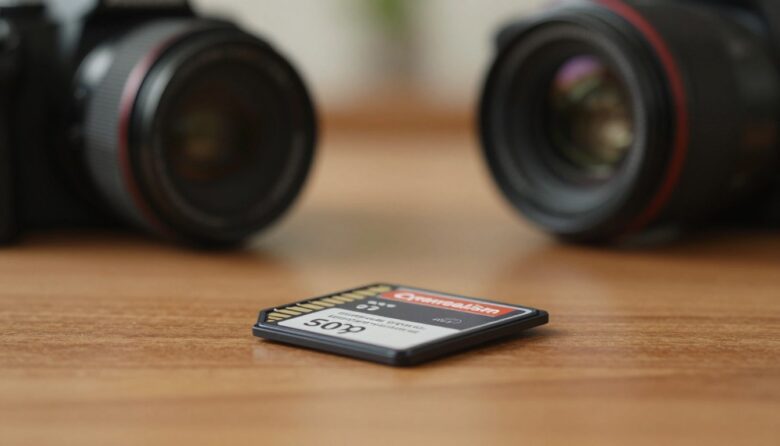
I’ve shot hundreds of thousands of images over the last decade, and I know how a sudden write error or full card can ruin a day. As a professional, I trust the SanDisk 256GB Extreme PRO SDXC UHS-I for reliable performance and steady write speeds.
Losing files can end a career or break a hobbyist’s heart. That’s why I focus on practical steps you can use on set, whether you work with a pro camera or a simple device.
I’ll explain the types of corruption you may face, from physical damage to software faults, and the best way to format your memory card in-camera. You’ll learn how to connect card hardware, manage storage, and keep backup routines that lower the chance of data loss.
My aim is simple: give you clear, fast tips so your photos and video stay safe, readable, and ready to use when you need them most.
Key Takeaways
- Use high-quality memory cards like SanDisk Extreme PRO for reliable writes.
- Format the memory card in-camera instead of deleting files one by one.
- Keep a backup plan and never rely on a single card for critical shoots.
- Know common causes of corruption and how to connect card hardware correctly.
- Keep recovery software and a card reader handy to recover lost files if needed.
Understanding Common Memory Card Issues
Knowing how memory media breaks down helps me spot trouble before it costs me images. I break issues into two clear groups so you can act fast when a problem shows up.
Physical Damage
Physical harm often comes from drops, bends, or dirty contacts. A small scrape can stop a memory card from working overnight.
I always handle cards carefully and store spares in a padded case. Treating cards gently is one of the simplest ways to reduce loss.
Software and Filing Errors
Software faults and file system corruption are quieter, but they cause major headaches when files won’t open.
Studies show about 1 in 1,500 files can become corrupted on standard media. Because these are solid state drives, they can handle many write cycles, but nothing lasts forever.
“Even a perfect card can fail without warning, so a recovery plan is non-negotiable.”
- When a camera or computer stops detecting media, the file system or drivers may be at fault.
- Missing files, unreadable photos, or odd file sizes are classic signs of corruption.
- I keep recovery tools and a good reader with me to restore files when possible.
How to Prevent SD Card Error During a Shoot
When I shoot, I follow a few simple habits that cut the risk of losing files mid-session.
I always make sure my gear stays in a protective case when not active. I carry extra pre-formatted cards so I can swap quickly if an issue appears.
Never turn your camera off while it is writing files. A sudden power loss can cause permanent corruption of your files.
Before a long run of video or burst shooting, I check battery levels and the card’s speed class. That way the device handles the write load and avoids dropped frames or partial files.
I format card in-camera rather than mass-deleting photos on a computer. This reduces file system problems and speeds up recovery if something goes wrong.
- Keep recovery software on your laptop and know how to read warnings on Windows or your camera.
- Carry a reliable reader and a spare, labeled memory for quick swaps.
- Read your camera manual to learn formatting and storage behavior for your model.
| Action | Why it helps | When to do it |
|---|---|---|
| Protective case | Reduces physical damage and exposure | At all times off-camera |
| Pre-format spare | Speeds swaps and avoids mixed file systems | Before each shoot |
| Check battery & speed | Prevents write interruptions and corrupted media | Start of session and before long takes |
Selecting Reliable Memory Cards for Photography
A reliable brand makes a real difference when you’re shooting high-resolution video or long bursts. I choose gear that matches my workflow and camera needs so I can stay focused on the shot.
Choosing the Right Brand
I personally rely on the SanDisk 256GB Extreme PRO SDXC UHS-I for most work. It offers 200 Mb/s read and 140 Mb/s write speeds and costs about $36.99 on Amazon.
On my Nikon Z8 it handles 8K video without blackout issues. For sports at 20fps, consider the UHS-II version for faster throughput.
I never go below 256GB because it lets me shoot roughly 5,000 images before I need to offload files.
- I’ve used SanDisk cards for years with no failures after hundreds of thousands of images.
- Other brands exist, but I once lost a shoot to a failing unit—so I stick with trusted names.
- Drone shooters can look at the 512GB Extreme microSDXC UHS-I for ample storage.
| Model | Read / Write | Use case |
|---|---|---|
| SanDisk 256GB Extreme PRO | 200 Mb/s / 140 Mb/s | 8K video, full-frame stills |
| SanDisk 256GB Extreme PRO UHS-II | Higher throughput | High-frame-rate sports |
| SanDisk 512GB Extreme microSDXC | Good sustained speeds | Drone footage |
“Buying high-quality cards is the single best investment to protect your professional work.”
Always check compatibility with your camera and avoid counterfeit products. That extra care saves time and stress on set.
Best Practices for In-Camera File Management
I keep file handling simple in-camera so I can focus on framing the shot, not fixing issues later.
I always make sure to use a primary and secondary slot so my photos have an automatic backup on the fly. Treat the secondary slot as a true backup, not overflow.
If your camera uses CFexpress, keep it installed as the primary drive and never remove it during a session. That reduces physical damage to the memory and avoids unexpected read problems.
After every shoot I offload files to my computer and organize them into folders. This keeps storage clean and speeds later recovery if an issue appears.
When you need space, format card in the camera menu—don’t mass-delete files. Formatting maintains the file system and lowers the chance of fragmented data causing problems.
“Recovery software helps, but it can’t replace a steady backup routine.”
- Optimize camera settings for large video files so the device writes efficiently to high-speed media.
- Use recovery software only as a last resort; rely on your backup workflow first.
| Action | Why it helps | When |
|---|---|---|
| Dual-slot backup | Instant redundancy for files | During every shoot |
| Offload to computer | Frees memory and enables organization | After session |
| Format in-camera | Resets file system safely | When clearing space |
Proper Storage and Handling Techniques
I treat each memory holder like fragile film: protected, labeled, and never loose. That habit keeps my files safe and cuts the chance of physical damage when I travel.
I always make sure to store my cards in a shock-resistant case such as the Qkenvo Aluminum Memory Card Storage Case. A dedicated case stops drops and shields contacts from dust.
Never leave cards loose in a bag or pocket. Dust and static hit the gold contacts and can cause corruption to a memory card.
When I need to connect card hardware to my computer, I use a high-quality card reader. A stable reader reduces transfer faults and helps with faster recovery of data when needed.
- Keep cards out of extreme heat and moisture; electronics warp or fail under harsh conditions.
- Label each card with its age and usage so you can track life cycles and reduce loss.
- Clean corroded contacts gently with a soft, lint-free cloth before using.
| Action | Why | When |
|---|---|---|
| Shock-resistant case | Prevents drops and physical damage | Always off-camera |
| High-quality reader | Stable transfer to computer | During offload |
| Labeling | Tracks usage and reduces unexpected loss | Before each shoot |
Simple handling and smart storage are the best defenses against system faults and lengthy recovery tasks. Treat your media with respect and the data will serve you for years.
Why You Should Format Instead of Deleting
Formatting in-camera is the single habit that has saved me more shoots than any recovery trick. Mass-deleting photos on a computer can fragment the file system. Over time, that raises the risk of corruption and data loss.
I always use the camera’s menu to format a memory card before each session. That resets the file structure and lets the device write files more reliably.
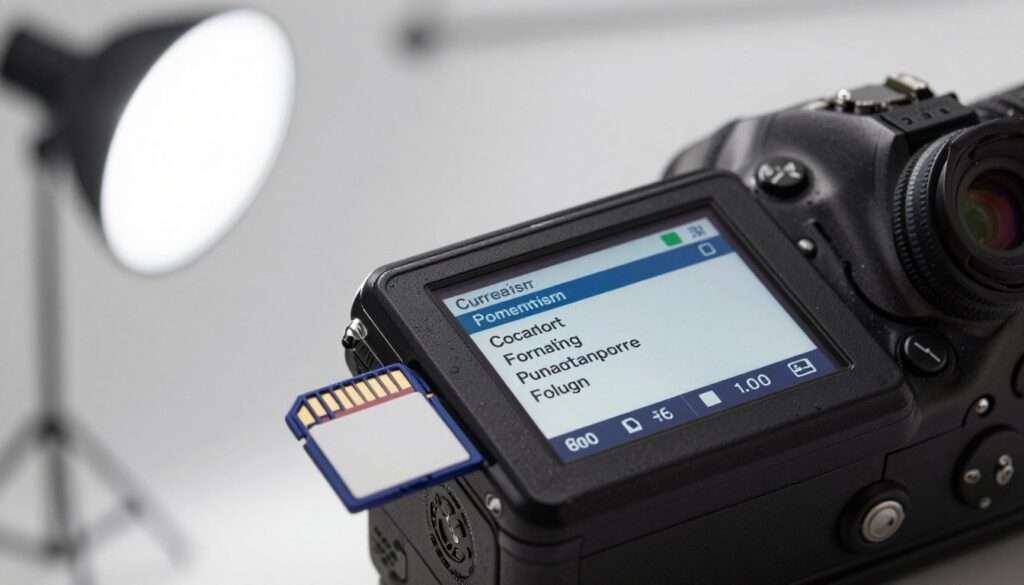
If you accidentally remove important files, stop using the media and run recovery software before you format. Once you format, recovering those files becomes harder or impossible.
- Format in-camera to maintain healthy storage and reduce system faults.
- Do a full format occasionally to surface bad sectors and isolate damage.
- Avoid deleting while the camera is writing files—this can cause serious write failures.
“Consistent formatting is the secret to keeping your cards performing like new.”
Avoiding Cross-Device Usage Conflicts
I keep each memory holder dedicated to one camera body to avoid surprises during a shoot.
I never share my cards between different camera bodies because each device formats and tracks files in its own way. If you must move a card to a new device, always format card first in that camera to ensure compatibility and reduce corruption risk.
Before you remove a card from a computer, always eject card hardware safely. That simple step stops data loss during transfer and lowers the chance you will need recovery software later.
“Dedicate specific cards to specific cameras and label them—this habit keeps your workflow smooth and your photos safe.”
- Check compatibility: Confirm the memory is supported by the device to avoid slow reads or unexpected errors.
- Use a reliable card reader: Connect card hardware to your computer and wait until transfers finish before disconnecting.
- Team workflow: If you hand a card to another photographer, format it first in your camera to prevent file system confusion.
| Action | Why it helps | When to do it |
|---|---|---|
| Dedicate cards to a camera | Reduces cross-device file system conflicts | Always, before a shoot |
| Format in new device | Ensures correct structure and avoids corruption | Immediately after moving a card between devices |
| Safely eject on computer | Prevents data loss during transfer | After files finish copying on Windows or macOS |
Managing Power and Battery Life
Managing power during a session keeps my system stable and my files intact. I always swap batteries before they die so the camera can finish writing every file.
Most modern devices have fail-safes, but I don’t rely on them during critical takes. A sudden loss of power while transferring files to a computer can corrupt the file system and make a memory card unreadable.
I carry extra batteries and a reliable charger so I can swap quickly when levels dip. In cold weather, batteries drain faster, so I rotate spares more often.
Sudden power surges or unstable supplies can harm memory and cause data loss. I use trusted charging gear and a grounded outlet when possible.
- Replace batteries before they die to avoid interrupted writes.
- Monitor battery life closely during long photos or video runs.
- Keep spares handy and use quality chargers to protect storage and files.
Recognizing Signs of Card Corruption
Small glitches in playback or slow saves often signal deeper trouble with your storage media. I watch for odd behavior early so I can act before files are lost.
Performance Red Flags
Slow write speeds, freezing during playback, or sudden drops in transfer rate are usually the first hints of failing memory.
If the device shows unknown files or names that make no sense, the file system may be corrupted. At that point I stop using the media right away.
- Slow writes or playback freezes
- Wrong reported capacity
- Strange filenames or missing photos
Hardware Detection Issues
When my camera or computer cannot detect files, I try a different card reader to rule out a bad connection. Updating device drivers can help in some cases, but often detection faults mean the memory is near the end.
If lost files can’t be accessed, I use professional recovery software and avoid further writes that could overwrite recoverable data.
“Early detection and swapping out failing media is the best way to avoid a catastrophic loss.”
Essential Steps for Data Recovery
If your media shows signs of corruption, a calm, methodical recovery routine gives you the best chance to get files back.
Stop using the device immediately. Every write can overwrite recoverable data, so eject the memory and avoid saving anything new to that drive.
Using Professional Software
I recommend reliable recovery software like Recuva, EaseUS, or Disk Drill. These tools scan drives and often restore lost files from logical corruption.
- Use a trusted card reader when you connect card hardware to your computer. A stable reader improves scan success.
- Run recovery first; do not format card or write new files until you try to retrieve data.
- If you use Windows, CHKDSK can fix logical issues, but only after you recover files, since it may alter recoverable data.
- If software fails, contact a professional recovery service for physical damage, water exposure, or severe corruption.
- Back up all recovered files to a separate drive or cloud storage so a later system fault won’t cost you again.
“Act quickly, use the right tools, and back up recovered data—those steps rescue most lost photos.”
Conclusion
, Good habits, right hardware, and a quick recovery plan keep your work safe and your mind clear.
I hope these tips help you keep shoots smooth and your photos intact. Handle cards with care, label them, and format in-camera before a session to keep things orderly.
When trouble comes, stay calm. Use the recovery steps I outlined and offload files immediately to a trusted drive. Treat each camera as part of a system and keep spare cards ready for fast swaps.
Invest in quality media, practice backups, and follow a clear routine. Do that and you’ll protect your work and shoot with more confidence. Thanks for reading, and shoot well.
FAQ
What are the top five tips to avoid write errors and "card full" messages during a shoot?
I keep extra high-speed memory cards formatted in my camera, check free space before shooting, use cards rated for my camera’s video mode, carry a reliable card reader for quick offloads to my laptop, and swap cards when one gets near full to avoid interruptions or file corruption.
How can I tell if my memory card has physical damage?
I inspect the card for cracks, bent contacts, or warping. If the gold pins look scratched or the plastic is chipped, I stop using it to avoid further harm to my camera or files.
What are common software and filing issues that cause problems with cards?
I see corrupted file systems from sudden power loss, interrupted writes, or improper ejection. Mixing cameras and card readers without reformatting for each device also creates conflicts that lead to unreadable files.
How should I prepare my equipment to reduce the chance of a card write failure mid-shoot?
I fully charge batteries, disable unnecessary wireless features, use a fast buffer-clearing card, and avoid heavy continuous shooting when a card nears capacity. These steps keep write speeds steady and reduce write interruptions.
What factors matter when choosing reliable memory cards for photography?
I pick cards from trusted brands like SanDisk, Lexar, or Samsung with UHS speed classes that match my camera. I also choose cards with proven endurance ratings for many write cycles if I shoot video or burst photos.
Why is brand selection important for memory cards?
I trust established brands for consistent speeds, better quality control, and warranty support. Generic or counterfeit cards often fail mid-project and risk data loss.
What in-camera file management practices help protect my files?
I format cards in the camera, avoid deleting images one by one in bulk, and offload files to an external drive as soon as practical. That minimizes fragmentation and accidental overwrites.
How should I store and handle my memory cards to keep them safe?
I store cards in a padded, labeled case away from magnets and extreme temperatures. I never leave them exposed to dust or moisture and avoid touching contacts with my fingers.
Why is formatting a card preferable to deleting files manually?
I format because it resets the file system cleanly, reducing hidden directory issues and leftover fragments. Deleting leaves structures behind that can cause future write conflicts.
How can cross-device usage cause problems with my cards?
I avoid swapping a card between different operating systems or devices without reformatting. Each device may write metadata differently, leading to incompatibilities and unreadable files.
What techniques help manage power and battery life to protect writes?
I carry spare batteries and a power bank, set shorter auto-shutdown times, and avoid file transfers during low battery states. Ensuring steady power prevents interrupted writes that corrupt files.
What signs indicate a card is starting to corrupt or fail?
I look for slow read/write speeds, frequent camera freezes, files that won’t open, or sudden unreadable messages. These are red flags I address immediately by stopping use and offloading files if possible.
What performance red flags should I watch for during a shoot?
I watch for unusually long save times after shots, dropped frames during video, and longer buffering. Those point to a failing write path or a card that can’t handle the camera’s data rate.
How do I know if a device can’t detect my memory card?
I test the card in the camera, a dedicated card reader, and another computer. If none detect it, the card’s file system or hardware likely failed and I avoid further writes to prevent data loss.
What initial steps should I take for data recovery if I lose files?
I stop using the card immediately, use a reputable card reader, and try read-only recovery with tools like PhotoRec or Recuva. If that fails, I consult professional recovery services to avoid making things worse.
Are professional recovery software tools worth using for lost photos and videos?
I often start with trusted software such as Stellar Photo Recovery or EaseUS to retrieve files. These tools can recover many formats, but success depends on whether new data overwrote the originals.

Ryan Whitaker is a technology writer and imaging enthusiast dedicated to camera storage media and data performance. He breaks down complex storage solutions into practical insights for photographers, videographers, and content creators.