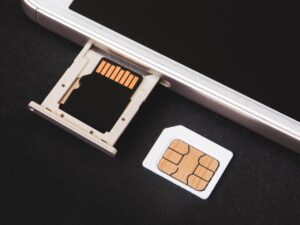

Preventing write error and card full issues during a shoot is mostly about preparation, card choice, and disciplined file handling. These problems usually appear at the worst possible moment: during a wedding ceremony, a product session, a sports burst, a long interview, or a paid client shoot where stopping is not easy.
A “write error” generally means the camera had trouble saving data to the memory card. A “card full” warning means the camera no longer has enough usable storage space to continue capturing photos or video. Both problems can be simple, but both can also point to poor card maintenance, slow media, formatting issues, file system limits, or a card that is starting to fail.
The good news is that most of these issues can be prevented before the camera ever leaves the bag. A reliable card workflow is not complicated, but it needs to be consistent. The biggest mistake many photographers make is treating memory cards like permanent storage instead of temporary capture media.
This guide explains five practical tips to reduce the risk of write errors, avoid card full warnings, and keep your shoot moving with fewer interruptions. The focus is on simple steps that work for beginners, freelancers, content creators, and working photographers who need dependable results.
Nothing can guarantee that a memory card will never fail, but using the right cards, formatting correctly, rotating media, and backing up files properly can make problems much less likely.
Important note: memory cards can fail without warning. Before formatting, deleting, or reusing a card, always confirm that your files are safely backed up in at least one reliable location. For paid, legal, or once-in-a-lifetime shoots, use a backup workflow instead of relying on a single card.
Choose a Memory Card That Matches the Camera and the Shoot
The first step to prevent write error and card full issues during a shoot is choosing a card that matches what the camera is trying to record. A slow card may work for basic photos, but it can struggle with long bursts, high-resolution RAW files, 4K video, high-bitrate video, or cameras that write to two cards at the same time.
Many photographers only look at capacity, such as 64 GB, 128 GB, or 256 GB. Capacity matters, but write speed matters just as much. A card may have enough space and still fail to keep up if the camera is sending data faster than the card can save it.
For video, pay attention to speed class markings such as UHS Speed Class and Video Speed Class. These symbols are designed to help users match cards and devices for stable recording. A higher-capacity card with the wrong speed rating can still cause recording interruptions.
| Shoot Type | Card Priority | Common Risk |
|---|---|---|
| Casual JPEG photos | Reliable brand and enough capacity | Running out of space after many small sessions |
| RAW photography | Fast sustained write speed and larger capacity | Slow buffer clearing during bursts |
| 4K video | Video-rated card recommended by the camera manual | Recording stops because the card cannot keep up |
| Weddings and events | Several tested cards instead of one huge card | Losing too much work if a single card fails |
| Sports and wildlife | High write speed and fast buffer recovery | Write error during continuous shooting |
In practice, the safest choice is not always the largest card you can buy. It is usually a card from a trusted brand, purchased from a reliable seller, with a speed rating that meets or exceeds the camera manufacturer’s recommendation.
Format the Card in the Camera Before Important Work
Formatting prepares the card for clean use inside the camera. It is different from simply deleting files. Deleting individual photos over and over can leave the card with a messy file structure, while formatting gives the camera a fresh starting point.
For most shoots, the best habit is simple: copy the files, verify the backup, then format the card in the camera that will use it. Formatting in the camera helps the card match that camera’s folder structure and recording behavior.
Do not format a card before confirming that the files have been transferred safely. A common beginner mistake is formatting too quickly because the shoot feels finished. If the backup failed or only copied thumbnails, formatting can turn a simple workflow issue into a serious data loss problem.
-
Copy all files to your main storage.
Transfer the full photo or video folders to your computer, external drive, or primary storage system. Avoid dragging only selected previews unless you are sure the original files are included.
-
Check that the files open correctly.
Open a few RAW files, JPEGs, and video clips before clearing the card. This confirms that the transfer worked and that the files are readable.
-
Create a second backup for important shoots.
For paid work, travel, weddings, interviews, or client projects, store another copy on a separate drive or cloud system. One copy is not a backup.
-
Insert the card into the camera that will use it.
Using the same card across several cameras without formatting can create folder or file-numbering conflicts. Use the camera’s format option before starting fresh.
-
Format only after verification.
Once the files are backed up and checked, format the card in-camera. This reduces clutter and helps the camera write new files more reliably.
If a card shows repeated write errors even after formatting, stop using it for important work. Formatting can solve file structure issues, but it does not repair a physically failing card.
Plan Capacity Before the Shoot Starts
A “card full” message is often preventable with basic planning. The problem usually happens when the photographer underestimates file size, forgets to clear old files, records more video than expected, or switches from JPEG to RAW without considering the space difference.
Before a shoot, check the camera’s remaining-shot estimate and available video time. These numbers are not perfect, but they help you notice obvious problems. If the card says it can only capture a small number of photos before you begin, something is wrong with the setup.
Capacity planning becomes more important when shooting high-resolution cameras, dual card recording, RAW plus JPEG, 10-bit video, slow motion, or long interviews. These modes can fill a card much faster than casual shooting.
| Warning Sign | Possible Cause | What to Do Before Shooting |
|---|---|---|
| Low remaining-shot count | Old files still on the card | Back up and format the card before the shoot |
| Video time is much shorter than expected | High bitrate or high frame rate selected | Lower the recording setting or use a larger card |
| Card fills quickly during RAW shooting | RAW files are larger than JPEG files | Bring extra cards and avoid unnecessary bursts |
| Camera stops during long recording | Card speed, capacity, heat, or file limits | Test the exact recording mode before the job |
| Available space changes unexpectedly | Hidden folders, mixed devices, or file system issues | Format in-camera after backup and avoid sharing cards across devices |
For professional work, carry more capacity than you expect to need. A practical rule is to plan for the shoot going longer than expected, the client requesting extra takes, and video clips becoming larger than planned.
Use a Clean Card Rotation System
A card rotation system helps prevent both technical problems and human mistakes. Without a system, cards get mixed, formatted too early, left in pockets, reused before backup, or taken to a shoot already half full.
The simplest method is to separate cards into “empty,” “in use,” and “backed up” groups. This can be done with a card wallet, colored labels, or even card orientation. For example, cards facing up are empty, and cards facing down contain files that must not be formatted.
During busy shoots, this matters more than people think. A photographer may be moving quickly between locations, changing batteries, switching lenses, and speaking with clients. A clear card routine prevents rushed decisions.
- Start every important shoot with formatted, tested cards.
- Keep used cards physically separate from empty cards.
- Do not delete individual files in-camera during the shoot unless absolutely necessary.
- Label cards so you can identify unreliable or older media.
- Retire any card that shows repeated errors, unusual slowdowns, or corrupted files.
- Never format a card until the files have been backed up and checked.
A clean rotation system also reduces the temptation to use one huge card for everything. Several smaller reliable cards can limit damage if one card fails, especially during events and travel work.
Avoid Risky Habits During the Shoot
Many card problems are caused by habits that seem harmless. Removing a card while the camera is still writing, turning off the camera during a save process, using a nearly dead battery, or deleting files while the buffer is active can increase the risk of errors.
When the camera’s access light is blinking, it usually means files are being written. Pulling the card or battery during that moment can interrupt the process. Even if the camera seems idle, wait until writing has finished before opening the card door.
Another risky habit is using the same memory card in cameras, computers, drones, audio recorders, and other devices without formatting. Each device may create its own folders and file structure. This does not always cause problems, but it increases the chance of confusion and errors.
- Wait for the camera access light to stop before removing the card.
- Use charged batteries so the camera does not shut down while writing.
- Avoid filling cards to the absolute last megabyte during important shoots.
- Do not use cards that have been bent, exposed to water, or physically damaged.
- Keep cards in a protective case instead of loose in a pocket or camera bag.
- Test new cards before using them for paid or irreplaceable work.
In many cases, card reliability is not only about the card itself. It is about the whole workflow around the card: how it is stored, inserted, removed, formatted, backed up, and retired.
Build an Emergency Plan for Write Error and Card Full Warnings
Even with good preparation, errors can still happen. The goal is to respond calmly and avoid making the situation worse. The wrong reaction can overwrite files, damage the file structure, or cause panic during a shoot.
If you see a write error, stop shooting on that card. Turn the camera off only after it finishes any active writing attempt, remove the card carefully, and replace it with a known-good card. Do not keep testing the same card during an important moment unless the shoot can safely pause.
If you see a card full warning, do not randomly delete files in a hurry unless the images are clearly backed up or not needed. It is safer to replace the card than to delete under pressure.
| Problem During Shoot | Safer Immediate Action | What to Avoid |
|---|---|---|
| Write error appears once | Switch to a spare card and inspect the card later | Continuing to shoot critical files on the same card |
| Write error repeats | Retire the card from the shoot immediately | Formatting it repeatedly during paid work |
| Card full warning appears | Insert an empty card from your rotation wallet | Deleting random files without backup |
| Camera says card is locked | Check the SD lock tab and reinsert the card carefully | Forcing the card or damaging the slot |
| Files look corrupted | Stop using the card and attempt recovery later | Saving new files to the same card |
An emergency plan is especially useful for weddings, interviews, sports, wildlife, and travel. When the pressure is high, a prepared response is much safer than improvising.
Common Mistakes That Lead to Card Problems
One common mistake is buying cards from unknown sellers because the price looks attractive. Counterfeit or low-quality cards may display a large capacity but fail during real use. This can create card full warnings, corrupted files, or write errors when the camera needs steady performance.
Another mistake is assuming that a card that worked once will always be safe. Cards wear out over time. They can also become unreliable after physical damage, extreme heat, moisture, electrical problems, or repeated heavy use.
A third mistake is using one card for months without ever formatting it properly. Long-term deleting, partial transfers, mixed folders, and cross-device use can create messy storage conditions. Formatting after backup keeps the card cleaner for the next session.
Some photographers also ignore small warning signs. If a card suddenly writes slowly, disappears from the camera, shows strange file names, or creates unreadable clips, treat that as a serious alert. It is better to retire a suspicious card early than to lose a full client shoot.
When to Seek Support or Replace the Card
You should seek camera support, card manufacturer support, or professional data recovery help when the same problem keeps happening across different cards, when a card contains important files that will not open, or when the camera slot may be physically damaged.
If one card fails in multiple cameras or computers, the card is likely the problem. If multiple good cards fail in the same camera, the camera body, card slot, firmware, or settings may need attention. Testing carefully helps avoid blaming the wrong part.
For irreplaceable files, do not keep writing to the card. Do not format it. Do not run random repair tools without understanding the risk. A professional recovery service may have a better chance when the card has not been overwritten.
Replace a card immediately if it has repeated write errors, visible damage, unstable capacity readings, frequent corruption, or performance that has become unreliable. Memory cards are cheaper than reshoots, refunds, and lost client trust.
Conclusion
The best way to prevent write error and card full issues during a shoot is to treat memory cards as part of the shooting system, not as an afterthought. Choose cards that match your camera, format them correctly, plan capacity, rotate them carefully, and stop using any card that shows warning signs.
Most problems begin before the shoot: an old card, a slow card, a half-full card, a card used in several devices, or a card that was never backed up and formatted. A simple workflow can prevent many of these issues and make your camera more dependable under pressure.
For important work, always carry spare cards, verify backups, and check the camera manual for card compatibility. If errors continue across different cards, contact the camera manufacturer or a qualified repair service before trusting the setup on another serious shoot.
FAQ
1. What does “write error” mean on a camera?
A write error means the camera had trouble saving data to the memory card. This can happen because the card is too slow, damaged, corrupted, full, locked, badly formatted, or not fully compatible with the camera. It can also happen if the camera loses power while saving files. If the error appears once, switch to another tested card and inspect the problem card later. If it happens repeatedly, stop using that card for important work.
2. Why does my camera say “card full” when I deleted photos?
A camera may still show limited space after deleting photos if old files, hidden folders, protected files, video clips, or files from another device remain on the card. Some cameras also keep folder structures that are not obvious when browsing quickly. The safer solution is to back up the card, verify the files, and format the card in-camera. Formatting should only be done after you are completely sure the files are saved somewhere else.
3. Is formatting better than deleting all photos?
For regular camera use, formatting is usually cleaner than deleting every photo one by one. Deleting removes selected files, while formatting prepares the card’s file structure for fresh use. This can reduce clutter and make the card easier for the camera to manage. However, formatting erases the visible file structure, so it must never be done before backup verification. For important shoots, copy files, check that they open, make a second backup, and only then format.
4. Can a slow memory card cause a write error?
Yes. A slow card can cause write errors or recording interruptions when the camera creates data faster than the card can save it. This is common with RAW bursts, high-resolution cameras, high-bitrate video, 4K recording, and slow motion. The card may seem fine for simple photos but fail during heavier capture. Always check the camera manual and use a card with the recommended speed class or better for the exact recording mode you plan to use.
5. Should I use one large card or several smaller cards?
Several reliable cards are often safer than one very large card, especially for weddings, events, travel, and paid work. One huge card is convenient, but if it fails, more of the shoot may be at risk. Smaller cards encourage natural rotation and reduce the amount of work stored on a single piece of media. The best choice depends on your workflow, but for serious shoots, carrying multiple tested cards is a safer habit.
6. Can using the same card in different cameras cause problems?
It can. Different cameras and devices may create different folders, file names, databases, or recording structures on the same card. This does not always cause an error, but it can increase the risk of confusion, file conflicts, or unexpected storage behavior. A safer workflow is to dedicate cards to specific cameras when possible. If you need to move a card between devices, back it up first and format it in the camera that will use it next.
7. What should I do if a write error happens during a paid shoot?
Stop using that card immediately and switch to a tested spare card. Do not keep shooting important files on a card that has already shown an error. Place the problem card aside, mark it clearly, and inspect it after the shoot. If the card contains important files, do not format it or save new files to it. Continuing to write data can make recovery harder if the card is failing or the file structure is damaged.
8. How can I tell if a memory card is failing?
Warning signs include repeated write errors, files that will not open, missing images, unusual file names, slow saving, random camera freezes, incorrect capacity readings, or errors that follow the card into another camera or computer. A card does not need to fail completely to become unsafe. If it behaves strangely more than once, retire it from important work. Memory cards are replaceable; lost photos, client trust, and once-in-a-lifetime moments are not.
9. Does the SD lock switch cause write errors?
The lock switch on a full-size SD card can prevent writing if it is in the locked position or if the switch is loose. In that case, the camera may show a card locked, write protected, or write error message. Remove the card carefully and check the small switch on the side. If the switch feels damaged or moves too easily, do not trust the card for important work. MicroSD cards used with adapters can also create adapter-related issues.
10. Is it safe to delete photos in-camera during a shoot?
Deleting a few obvious test shots is usually not a disaster, but heavy in-camera deleting during a shoot is not ideal. It can slow your workflow, increase the chance of deleting the wrong file, and make card management less clean. During important work, it is usually safer to carry enough capacity and avoid deleting under pressure. Review and delete later on a computer after backup. If the card is nearly full, replace it instead of rushing.
11. Should I format a new memory card before using it?
Yes, it is a good habit to format a new card in the camera before using it seriously. Before relying on it for paid or important work, test it with the same camera settings you plan to use. Shoot bursts, record video, review files, and transfer them to a computer. This helps confirm that the card is recognized correctly and performs as expected. Do not use a brand-new, untested card for a critical job.
12. When should I contact the camera manufacturer or repair service?
Contact support or a repair service if several reliable cards fail in the same camera, if the card slot feels loose, if the camera repeatedly freezes while writing, or if errors continue after formatting and firmware checks. If the issue follows one specific card, replace the card. If the issue follows the camera body, the slot, internal electronics, or settings may need inspection. For valuable lost files, contact a data recovery professional before attempting risky fixes.
Editorial note: this article is for educational purposes and does not replace the camera manufacturer’s manual, official card compatibility list, or professional data recovery support when important files are at risk.
Official References
- SD Association — Speed Class Standards for Video Recording
- SD Association — Capacity Standards for SD, SDHC, SDXC and SDUC Cards
- SD Association — SD Memory Card Formatter for Windows and Mac

Marcus Hale is the founder of Priwoo StorageLab and a long-time camera storage enthusiast. After losing a full shoot to a corrupted card, he became obsessed with understanding how memory media really works. He now spends his time testing cards, breaking down storage specs, and helping photographers and videographers avoid data loss.