I want to help you avoid the heartbreak of data loss by showing simple, reliable checks you can run before you trust a new memory device with your photos.
Scammers often take a few gigabytes of cheap flash storage and rewrite firmware so the stick reports a huge capacity while it only holds a little. This trick can lead to unexpected corruption or total loss of your images when the device overwrites real files.
In this short guide I’ll walk you through steps to verify capacity and inspect the serial number and firmware reported by the device. I’ll also point you to reliable software tools to check storage health and to a simple process I use to protect my photos.
Make sure you test every new purchase so your important files remain safe and you avoid common problems with counterfeit memory.
Key Takeaways
- Counterfeit memory can lie about capacity; verify before use.
- Check the serial number and firmware to spot inconsistencies.
- Use reputable software to confirm true storage size and health.
- Testing a new device prevents costly data loss later.
- Simple checks save time and protect your photos.
Understanding the Risks of Counterfeit Storage
Cheap memory products often hide serious flaws that can wipe your photos without warning.
I buy new storage with caution because I know some devices lie about their true specs. A device that reports more space than it has will overwrite files once the real memory fills up. That leads to sudden data loss and long-term corruption.
These cards and drives also fall short on speed. I’ve seen many products that choke during high-speed shooting or long video clips. Poor performance can ruin a shoot and cost you hours of recovery work.
- Unreliable memory can fail after a short period of use.
- False capacity leads to immediate corruption when real storage runs out.
- Performance problems make cheap drives unsuitable for demanding work.
“Even if a card works at first, the underlying memory often can’t keep up—and it will fail when you need it most.”
| Risk | What I see | Impact |
|---|---|---|
| Misreported capacity | Device shows more GB than real memory | Files corrupt once physical storage is exceeded |
| Low-quality memory chips | Slow write/read speeds under load | Dropped frames, slowed workflow |
| Early failure | Works initially, then degrades | Permanent data loss and wasted money |
How to Spot a Fake SD Card Before You Buy
Stopping a bad purchase at the shelf is often the easiest way to protect your photos.
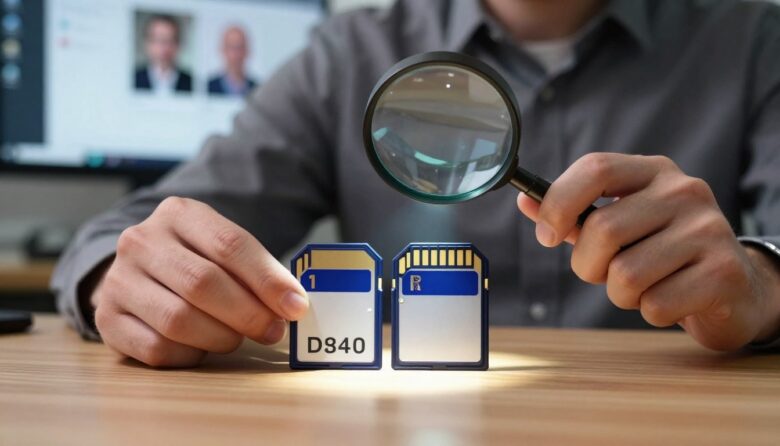
I check a few visible cues before I buy any memory product. Look for mismatched logos, odd packaging, or claims that don’t align with the brand’s catalog. For example, Xiaomi is a global brand, but they do not manufacture microsd cards—any Xiaomi-branded microsd is a clear red flag.
Common Red Flags
Price that seems too low is a major signal. If a seller lists a huge size for a tiny price, walk away.
Poor packaging or spelling mistakes on the label often point to problems with the product itself.
- Check printed speed class and actual size claims against the brand website.
- Watch for odd model numbers like “44082” that mimic real part numbers but are inconsistent with official ranges.
- Always review the seller rating—third-party sellers on large marketplaces are a common source of bad units.
Checking Brand Authenticity
Confirm brand and product listings on the manufacturer’s site before you buy. Some sellers mimic packaging for well-known brands, but the internal memory and speed rarely match.
“A genuine product will match the brand’s published specs and serial-number format.”
Performing a Reliable Fake SD Card Test
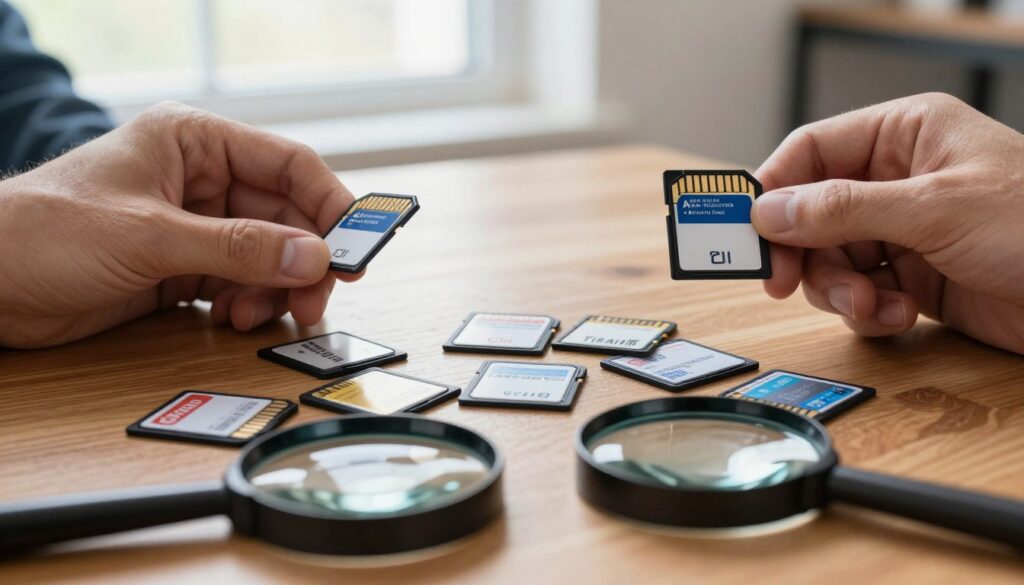
Before you trust a new memory device with photos, run a reliable check that targets random sectors across the reported capacity.
Why this matters: Performing a fake SD card test is the only way to be absolutely certain the storage device is safe for your data. I recommend running the check on your computer before you use the media in cameras or phones.
- I recommend ValiDrive because it randomly picks sectors across the claimed capacity to read and write. This reveals mismatched mappings fast.
- This process is far quicker than filling a large drive, saving you time while still verifying true capacity and read/write integrity.
- Follow the order of operations carefully: back up any files, unmount the device, then run the tool to avoid accidental wipes.
“If the utility cannot access specific sectors or reports mismatched blocks, that is a clear sign the product is unreliable.”
Bottom line: Use a reliable tool on your computer to probe random blocks. It’s the most efficient way to confirm memory, speed, and real capacity before you store important files.
Essential Software Tools for Verifying Capacity
A few simple utilities can save hours of recovery work by proving a drive’s true capacity and integrity.
Using H2testw for Accuracy
H2testw writes and reads files across the entire reported space on a drive. I use it on Windows when I want a thorough check of a card or drive.
It can take time, but it exposes mismatched size and corrupted blocks reliably. Always back up any existing files first—the process overwrites the media.
Leveraging FakeFlashTest
FakeFlashTest offers a Quick Size option that writes 512 bytes to random sectors. I run it when I need a faster scan of cards or microsd products.
This tool is handy when I have little time but still want to confirm the reported capacity before I use the device in a camera.
Command Line Options for Advanced Users
Advanced users can use F3 on macOS or Linux to perform read/write checks from the terminal. The command-line approach is flexible and scriptable for multiple drives.
“These utilities read what the device reports; if firmware lies, look for serial-number mismatches.”
| Tool | Best for | Notes |
|---|---|---|
| H2testw | Full capacity verification (Windows) | Thorough, slow; overwrites space |
| FakeFlashTest | Quick size check | Random-sector quick scan; fast |
| F3 (command line) | Advanced automation (macOS/Linux) | Scriptable; good for multiple drives |
Benchmarking Performance to Detect Hardware Issues
A simple speed run can reveal if a drive will hold up under real shooting conditions.
I benchmark my memory to find emerging hardware issues early. A benchmark shows whether read and write throughput stays steady or falls apart.
Interpreting Speed Fluctuations
AJA System Test gives clear graphs that show speed over time. I use its software to watch for sudden drops or long stalls during a read write pass.
If the measured speed is close to the number on the package, the drive usually meets expectations. If the speed dips toward zero, that signals serious issues with the memory or firmware.
- Benchmarking a memory card helps spot devices that fail under load.
- Even genuine cards can be duds; a quick disk benchmark on Windows saves time.
- Watch for wide swings in throughput—those swings predict data loss under heavy use.
“Consistent speed is as important as reported capacity when you protect your photos.”
| Check | What to expect | Action |
|---|---|---|
| Steady speed | Close to printed number | Safe to use for most shoots |
| Intermittent drops | Large fluctuations during run | Replace the drive; don’t trust for critical work |
| Near-zero stalls | Speed falls to almost zero | Return or discard immediately |
What to Do If You Discover a Fraudulent Drive
Discovering that a drive misreports size calls for a clear, step-by-step response to protect your images.
Stop using the device immediately. Unmount it from your camera or computer and avoid writing anything more to the media. That prevents further data loss and limits corruption of files that may still be recoverable.
Contact the seller through the platform where you bought the product. I open a support case and request a refund or replacement. Most marketplaces have policies against selling counterfeit memory and will respond if you provide evidence.
Use reliable software on your computer to document results. Run a read/write tool and save the logs or screenshots. This evidence shows that the reported capacity and speed do not match reality and helps your refund claim.
If the physical memory contains some genuine space, consider repurposing it for non-critical storage of install files or temporary backups. I keep such devices away from important photo shoots.
“Documenting the failure and reporting it to the seller protects your rights and warns other buyers.”
- Stop use to avoid more data corruption.
- File a claim with the seller and include software logs.
- Leave a factual review to warn others.
- Repurpose the small real memory for low-risk uses.
| Action | Why it matters | Example outcome |
|---|---|---|
| Stop using device | Prevents further write-over and corruption | Files remain recoverable for longer |
| Contact seller | Triggers refund/return policy | Replacement or money back |
| Document with software | Provides proof for claims | Accepted dispute with marketplace |
| Repurpose safely | Salvages remaining memory | Use for non-critical backups |
Final Thoughts on Protecting Your Data
Before you put photos at risk, use a simple routine to confirm a device meets its specs. I buy from reputable brands and trusted sellers and I make sure the package and serial numbers match the brand site.
Always treat new cards and microsd products as unproven until checked. Avoid deals that seem too good to be true and keep receipts in case you need a return.
I test for true capacity and watch read write performance so I spot early problems. Consistent speed and stable read write behavior are signs the memory will hold up during shoots.
In short: prefer known brands, buy from reliable sellers, and validate each product quickly. Small habits prevent big loss and protect your work.
FAQ
How can I tell if a memory card’s capacity is genuine before I buy?
I inspect packaging and seller reputation, compare serial numbers with the manufacturer site (SanDisk, Samsung, Lexar, Kingston), and avoid deals that look too good. I also check physical printing for misspellings and poor logos. When possible I buy from authorized retailers or directly from the brand to reduce the chance of receiving a counterfeit storage product.
What are the common red flags that suggest a card may be fraudulent?
I look for unusually low prices, vague product listings, inconsistent labeling, missing warranty stickers, and packaging that feels flimsy. If the listed capacity or speed class doesn’t match the brand’s typical specs, that’s a warning. Odd seller locations and new accounts with lots of listings also make me cautious.
Which quick checks can I run on my Windows PC to verify actual capacity and integrity?
I format the drive using Windows’ Disk Management, copy a set of large files, and verify they open. I use dedicated utilities like H2testw or FakeFlashTest to write and read blocks across the full capacity. If files fail to copy or the tools report errors or lower capacity, I stop using the device with important data.
Why should I run a full write/read verification instead of just copying a few files?
Because some drives report a false capacity and will allow copying until the hidden fake area is reached. A full write/read scan fills every block and reveals mismatched capacity and corrupted sectors, which protects me from silent data loss later.
How do H2testw and FakeFlashTest differ, and when should I use each?
I use H2testw for straightforward write/read verification and Reliable capacity checks on Windows. FakeFlashTest is faster for preliminary scans because it writes smaller samples across the device. For a deep check I run both: FakeFlashTest to spot quick issues, then H2testw for full confirmation.
Are there command-line options for advanced users to validate a drive?
Yes. I use dd on Linux to write a known pattern and then compare with md5sum or cmp. On Windows I use PowerShell with Get-Volume and fsutil to check allocation and run chkdsk for errors. These methods give granular control and integrate well into scripting for batch checks.
What performance signs suggest hardware problems rather than just low capacity?
I watch for large speed drops during sustained writes, frequent I/O errors, and inconsistent read rates. Benchmark tools that report real-world sequential and random speeds will show fluctuations. If the card heats up excessively or disconnects, I consider it faulty and stop using it for important files.
If I find a fraudulent or failing device, what are my next steps to protect my data?
I immediately stop writing to the drive, copy any recoverable files to a trusted backup, and run recovery tools if needed. I contact the seller and the manufacturer for a refund or warranty claim, and report the listing if it was purchased online. Finally, I dispose of the card and replace it with a verified-brand product.
Can I recover corrupted photos from a compromised memory product?
Often I can recover at least some files using photo recovery software like PhotoRec or Recuva, provided the drive hasn’t been overwritten. I perform recovery to a different drive, then verify recovered files. If corruption is widespread, professional recovery services may be necessary but costly.
How can I prevent data loss when using removable flash storage in the future?
I follow a 3-2-1 backup habit: keep at least three copies of important photos, two different media types, and one offsite copy. I buy reputable brands, format new cards in the device I’ll use, and run verification tools before storing irreplaceable files. I also rotate media and avoid long-term storage on a single inexpensive drive.

Ryan Whitaker is a technology writer and imaging enthusiast dedicated to camera storage media and data performance. He breaks down complex storage solutions into practical insights for photographers, videographers, and content creators.