I often get asked whether swapping smaller storage into a full-size slot is safe during a shoot. I want to make this simple and useful.
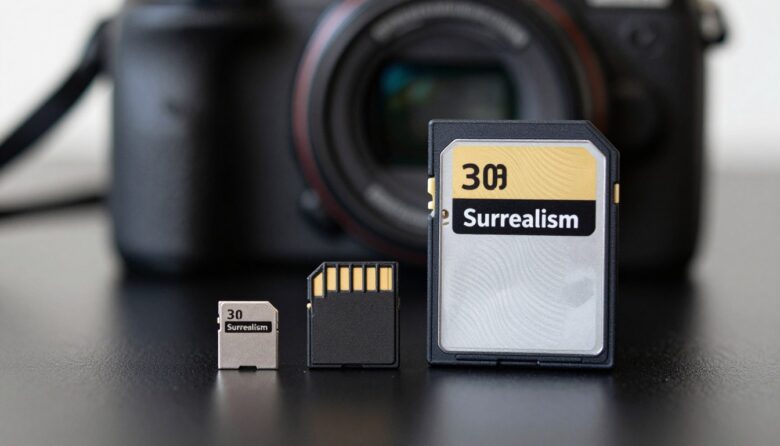
Secure Digital memory comes in two main physical sizes. One is noticeably smaller than the other, and that size gap matters when you handle devices and slots.
I will explain how a micro card fits a bigger slot via an adapter, and whether that extra piece can risk your gear. My goal is to help you weigh convenience against reliability, especially when high capacity and fast performance matter.
Key Takeaways
- I outline when using an adapter is acceptable and when it is not.
- Physical size affects handling, insertion, and mechanical stress.
- Capacity and speed specs determine if a memory option meets your needs.
- Adapters add a small risk; proper use can reduce failures.
- I’ll help you choose the right format for your camera and shoot type.
Understanding the Core Differences Between Memory Card Formats
I want to make the technical split easy to follow. Below I outline the main physical and logical differences so you can pick the right memory for your work.
Physical Dimensions
The standard secure digital format measures 32 x 24 mm, while the smaller format is 15 x 11 mm. That size gap affects handling and how a card sits in the slot.
Smaller media often need an adapter to fit larger slots. Adapters add extra parts that can affect mechanical stability during long shoots.
Capacity and File Systems
Capacity ranges have grown: SDSC tops out near 2GB, SDHC reaches 2–32GB, and SDXC goes up to 2TB. The newer SDUC spec extends theoretical capacity to 128TB using exFAT.
Note: SDHC commonly uses FAT32, which limits individual video files to 4GB. If you record long clips, choose a format and class that support larger files.
| Format | Capacity Range | Common File System | Typical Use |
|---|---|---|---|
| SDSC | Up to 2GB | FAT16 | Legacy devices, small data |
| SDHC | 2–32GB | FAT32 | HD video, general photography |
| SDXC | 32GB–2TB | exFAT | 4K video, RAW files |
| SDUC | Up to 128TB (theoretical) | exFAT | Future high-capacity workflows |
- Bus interfaces like UHS-I, -II, and -III control transfer rates and write speeds.
- Check your camera’s compatibility with capacity and speed class before you buy.
Comparing Micro SD vs SD Card for Cameras
When I compare tiny removable storage with the standard format, handling and performance are the first things I test.
Speed and sustained write matter most when you record high-bitrate video or shoot burst RAW on a camera like the Sony A7IV. I treat V30 as the baseline because it guarantees a sustained write of 30MB/s, which keeps 4K footage stable.
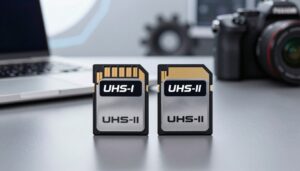
UHS-II brings a second row of pins and much higher transfer rates, but only if your device supports that interface. UHS-II cards can reduce buffering and speed up offloads to your workstation.
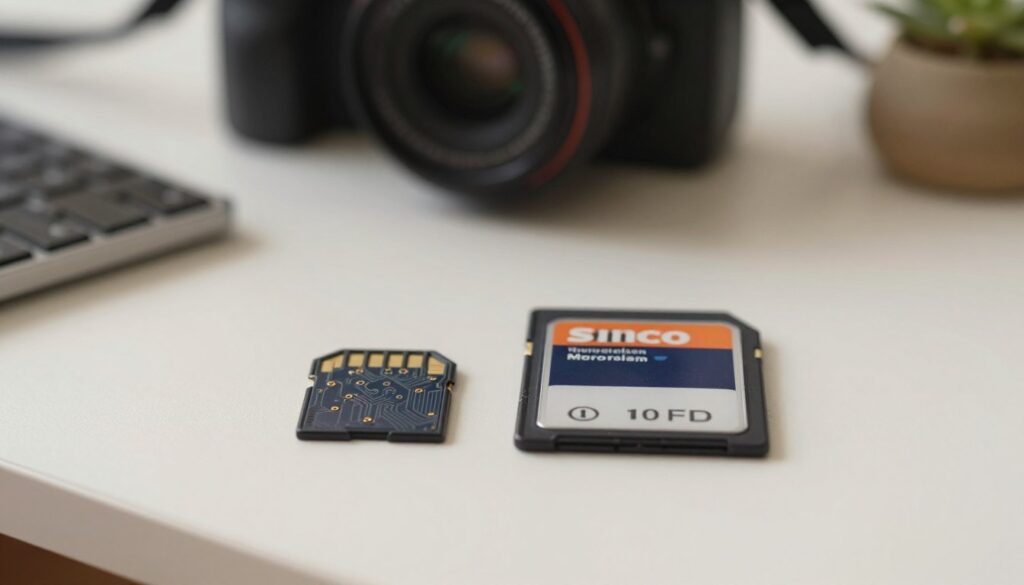
Adapters make a micro card usable in a full-size slot, but they add another connection point. That extra interface can cause inconsistent write speeds and occasional dropped frames during heavy video work.
| Feature | Benefit | Drawback |
|---|---|---|
| V30 speed class | Stable 30MB/s sustained write | May not suit very high bitrates |
| UHS-II | Faster transfer and burst performance | Needs camera compatibility |
| Adapter use | Convenient | Can reduce reliability |
- I recommend checking compatibility before you buy to match capacity and speed class to your workflow.
- For events and pro work, I favor full-size cards for ease of handling and greater reliability.
Is Using a Memory Card Adapter Safe for My Equipment
Before you slip a small memory into a larger slot, it’s worth weighing the real mechanical risks.
I see two main failure paths: physical connection issues and heat-related performance drops. Adapters add an extra junction that can loosen over time. Cheap adapters often fail to keep a stable contact and that can corrupt data or interrupt video mid‑take.
Potential Risks of Mechanical Failure
Thermal throttling is a real worry in hot environments like drones. High throughput parts may heat and reduce sustained write speeds. Many pro bodies lack active cooling, so the problem shows up during long 4K records.
My advice: avoid adapters during critical jobs. Use native memory whenever possible, and move files with a quality reader rather than relying on a temporary adapter.
| Issue | Impact | Mitigation |
|---|---|---|
| Loose connection | Data corruption or dropped video | Use high-quality adapters; avoid cheap ones |
| Thermal throttling | Lower sustained write, frame drops | Use native full-size media or cooled setups |
| Wear over time | Unreliable inserts and removal | Rotate media; inspect contacts regularly |
| Transfer risk | Slow or failed offloads | Use dedicated readers for transfers |
- I strongly avoid adapters for critical shoots because they add an avoidable failure point.
- If you must use one, choose a trusted brand and test it under real-world loads first.
Choosing the Right Storage for Your Specific Shooting Needs
Choosing the right media means balancing speed, capacity, and real-world reliability. I’ll walk through what matters for each workflow so you can pick the best option with confidence.
Professional Photography Requirements
If you shoot continuous RAW on bodies like the Canon EOS R5 or Nikon Z6II, prioritize UHS-II media. UHS-II clears buffers faster and reduces downtime between bursts.
I recommend trusted brands such as SanDisk, Lexar, or ProGrade to avoid counterfeit products that can ruin a shoot.
Video Recording Standards
For 4K or higher, choose a V60 or V90 speed class to guarantee sustained write speeds. Drones like the DJI Mini 4 Pro need that sustained performance to avoid dropped frames.
Match capacity to your session; 128GB is a solid baseline for most video projects.
Mobile and Drone Applications
Phones like Samsung Galaxy and Xiaomi support high-capacity microsdxc options up to 1TB, useful for mobile content creation.
For drones and phones, pick high-endurance cards and use a quality reader when offloading large amounts of data. That small step often saves time and prevents transfer failures.
Final Thoughts on Selecting Your Camera Memory
I’ll wrap up by pointing out the practical choices that keep your files safe and your workflow steady.
Choose native memory cards when reliability matters. Trusted brands protect your data and reduce the risk of interruptions. Keep capacity and speed class matched to your camera and project needs.
Avoid unnecessary adapters during critical shoots. A single micro card adapter can add a weak link in a long recording session and affect write speeds and performance.
My final tip: format media in-camera, store cards in a protective case, and test new parts before you depend on them in the field. Investing in high-quality, native cards saves time and heartache.
FAQ
Is it safe to use a microSD card with an adapter in a full-size slot?
I use adapters often and they usually work fine, but they add a tiny risk. A bad fit or a cracked adapter can cause poor contact, card ejection, or even damage to the slot. For casual shooting and backups I’ll use one, but for professional gigs I prefer a native full-size card to reduce mechanical problems and ensure consistent write performance.
What are the main physical differences between the two formats?
The main difference is size. One is much smaller and fits phones and action cameras; the other is larger and made for DSLRs and mirrorless bodies. That size affects how the card sits in a camera and how cooling and contact pins behave, which in turn affects reliability and handling during swaps.
How do capacity and file systems affect compatibility?
Capacity ranges overlap, but very high capacities may require exFAT formatting. Older cameras only read FAT32 and top out around 32 GB. I always check my camera’s manual and format the card in-camera to avoid issues with file allocation, slow directory reads, or unreadable files.
Are there performance differences I should care about?
Yes. Sustained write speeds and bus interface matter more than the card’s label. Cards that use UHS-II or higher deliver faster continuous writes, which I need for burst RAW shooting and 4K or higher video. Using a low-speed card in a high-demand shoot causes dropped frames or buffer delays.
Can an adapter reduce write speed or reliability?
An adapter can introduce marginal speed loss and extra contact resistance. Cheap adapters sometimes misalign pins or lack proper shielding. I avoid unknown brands and buy adapters from Sandisk, Lexar, or Sony when I must convert sizes to keep performance predictable.
What mechanical risks do adapters bring?
Adapters can fracture, bend, or trap debris. A snapped adapter inside a camera can block the slot or damage pins. I visually inspect adapters before each shoot and keep spares. When swapping cards quickly, I use a card reader instead of inserting adapters into my camera.
Which choice is best for professional photography?
I pick full-size high-end cards with UHS-II or CFexpress where supported. They handle long burst sessions, deliver reliable sustained writes, and reduce the chance of corruption. Brands I trust include SanDisk Extreme Pro, Sony Tough, and ProGrade Digital for consistent performance and support.
What should I use for video recording, especially 4K or higher?
For 4K or 6K video I choose cards rated for high sustained write speeds and appropriate speed classes (V30, V60, V90). Those ratings guarantee minimal sustained throughput. I also test cards with my camera by recording long clips to confirm no dropped frames before important shoots.
Are smaller cards better for phones and drones?
Smaller cards suit phones, action cams, and many drones due to size and weight. I ensure the card’s speed class matches the device’s recording needs. For drones, I prefer high-end microSD cards from Samsung EVO Plus or SanDisk Extreme because they withstand vibration and heat better.
How do I choose the right capacity and speed for my needs?
I map my workflow first: photo bursts, RAW file sizes, video resolution and codec, plus backup frequency. Then I pick capacity and speed to match. For example, photographers shooting RAW choose 64–256 GB UHS-II cards; videographers recording 4K often use 128 GB+ V60 or V90-rated media.
Should I format cards in-camera or on my computer?
I always format in-camera before a job. That ensures the file system and allocation tables match the camera’s firmware. I back up any files first, then use the camera’s format option to avoid cross-device compatibility quirks.
How do I reduce the chance of data loss or corruption?
I follow a few rules: buy reputable brands, avoid cheap adapters, format in-camera, don’t remove cards during writes, and use dual-slot cameras with backup recording if possible. I also keep multiple smaller cards instead of one huge card to limit data loss on failure.
Are some brands more reliable than others?
Yes. I rely on established names like SanDisk, Samsung, Sony, Lexar, and ProGrade Digital. These brands test media thoroughly and offer clearer speed ratings and warranties. Cheap off-brand media often exaggerates speed and capacity and increases failure risk.
When is a card reader a better option than using an adapter in-camera?
A reader is better when I’m transferring lots of files or when I want to minimize wear on the camera’s slot. USB 3.1 or Thunderbolt readers are faster than many in-camera transfers, and they avoid mechanical stress from repeated insertions and removals.
How often should I replace storage media?
I replace cards when they show errors, slowdowns, or after several years of heavy use. As flash wears with program/erase cycles, I treat cards like consumables: rotate them, monitor for bad sectors, and retire any card that acts unreliable.

Ryan Whitaker is a technology writer and imaging enthusiast dedicated to camera storage media and data performance. He breaks down complex storage solutions into practical insights for photographers, videographers, and content creators.