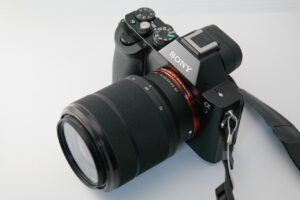
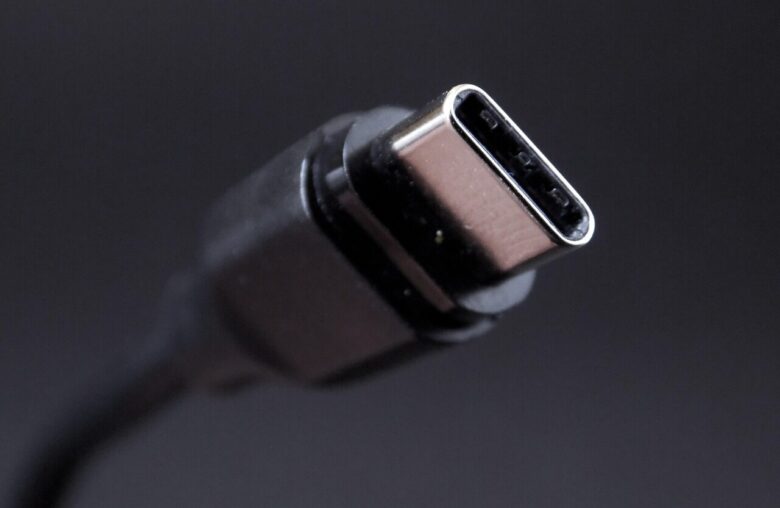
SSD recording via USB-C can be a practical way to capture high-quality video without paying the premium price of some high-end camera cards. For many creators, the main attraction is simple: portable SSDs often offer more storage for the money, and they can be easier to reuse across cameras, phones, laptops, and editing setups.
The idea is not new, but it has become more common because many modern cameras and smartphones now support direct recording to external storage. Some cinema cameras can record Blackmagic RAW or ProRes to USB-C media, while supported iPhone Pro models can record ProRes directly to an external USB-C storage device when the drive, cable, format, and power requirements are correct.
The important detail is that USB-C is only the connector. It does not automatically mean the storage setup is fast enough, stable enough, or approved for every recording mode. A cheap SSD with impressive advertised read speed may still fail during long high-bitrate recording if its sustained write speed drops, if the cable is weak, or if the drive overheats.
High-end cards still exist for a reason. CFexpress, CFast, and professional SD cards are compact, cable-free, and designed for camera workflows. In many cases, they are also easier to manage on a fast-moving set. The question is not whether SSD recording is always better, but whether it is good enough and safe enough for the way you shoot.
This guide explains when USB-C SSD recording makes sense, when high-end cards are still the safer choice, how to test a setup before using it for paid work, and which mistakes can cause dropped frames, slow recording warnings, or lost footage.
Important note: before using any external SSD for professional recording, check your camera or phone manufacturer’s official media requirements, test the exact drive and cable combination, and avoid using untested storage for paid shoots, weddings, interviews, or once-in-a-lifetime footage.
Why external SSD recording became attractive for video creators
External SSD recording became popular because video files keep getting larger. Higher resolutions, higher frame rates, 10-bit color, Log profiles, RAW formats, and ProRes workflows can fill small memory cards very quickly. A creator who records interviews, events, real estate videos, YouTube content, product shots, or documentary footage may need hundreds of gigabytes in a single day.
In many cases, a portable SSD gives more capacity for less money than premium camera cards. A 1 TB or 2 TB SSD may be easier to justify than buying multiple high-end cards with the same total capacity. It also connects directly to a computer for editing, backup, and file transfer, which can simplify the workflow after the shoot.
The other benefit is flexibility. A USB-C SSD can often be used with laptops, tablets, some cameras, and supported phones. That makes it useful beyond one camera body. If the creator upgrades cameras later, the SSD may still serve as backup storage, editing storage, or transfer media.
However, the lower cost per gigabyte is only useful if the SSD can record reliably. Video capture is different from copying files. During recording, the drive must keep writing data continuously without sudden drops. A drive that reaches high benchmark speeds for a short burst may still be risky if it slows down during longer takes.
When SSD recording via USB-C makes sense
SSD recording via USB-C makes the most sense when the camera or phone officially supports external storage recording, the chosen codec does not exceed the drive’s sustained write performance, and the shooting environment allows the SSD and cable to be mounted safely.
It is especially useful for controlled shoots. For example, a talking-head video, podcast, studio scene, tutorial, product demo, or short film setup gives the operator enough time to mount the SSD, check the cable, monitor recording status, and run a short test before the real take. In this type of situation, the cost savings can be meaningful without adding too much risk.
It can also be a strong option for creators who record directly to editing-friendly formats. ProRes and some RAW workflows create large files, but they can be easier to edit than highly compressed formats. If the external SSD is fast and reliable, it can reduce the need to offload small cards throughout the day.
On the other hand, USB-C recording is less ideal for chaotic handheld shooting. If the SSD is hanging loosely from the camera, the cable can disconnect, hit the rig, or put pressure on the port. A small card inside the camera is usually safer when the camera is moving quickly, mounted on a gimbal, passed between operators, or used outdoors in tight spaces.
| Recording option | Best use | Main caution |
|---|---|---|
| USB-C external SSD | Long takes, studio work, interviews, controlled shoots, high-capacity recording | Needs a reliable cable, secure mounting, correct formatting, and enough sustained write speed |
| CFexpress card | High-bitrate RAW, fast action, professional workflows, demanding camera modes | Usually more expensive per gigabyte and tied to specific card readers or camera slots |
| High-speed SD card | Moderate-bitrate 4K, compact setups, hybrid photo and video work | Not every SD card is suitable for every video mode, even if the label looks fast |
| Internal phone storage | Casual recording, short clips, quick social content, no extra accessories | Limited space and some high-end recording modes may require external storage |
The real difference between advertised speed and sustained recording speed
One of the biggest mistakes is looking only at the maximum speed printed on the SSD box. Many drives advertise peak read speed because it looks impressive. Video recording depends more on sustained write speed. The drive must keep accepting data for the full length of the take, not just for a short benchmark test.
For example, a drive may advertise up to 1,000 MB/s, but that number may refer to ideal transfer conditions, a fast computer port, a short burst, or read speed rather than write speed. During real recording, the speed can drop because of heat, cache limits, file system behavior, cable quality, or the camera’s USB implementation.
This is why official requirements matter. Apple, for example, states that supported iPhone Pro models can record ProRes to external USB-C storage, but the storage must meet specific speed, power, cable, and formatting conditions. Some 4K ProRes modes require at least 220 MB/s write speed, while higher 4K frame-rate modes require more. The exact requirement depends on the model and recording mode.
Camera manufacturers also publish media guidance for specific models. Blackmagic Design lists recording media, formats, and storage rates for its cinema cameras, including USB-C external media support on compatible models. Those numbers are useful because they show how much data each codec and resolution can generate.
| Specification to check | Why it matters | What to avoid |
|---|---|---|
| Sustained write speed | Determines whether the drive can keep recording without interruption | Buying based only on peak read speed |
| USB cable rating | A slow or charging-only cable can limit performance or cause connection problems | Using an unknown cable from a charger |
| Power draw | Some phones and cameras can only power external drives within certain limits | Using a drive that needs more power than the device can supply |
| File system | The camera or phone may require exFAT, HFS+, or another supported format | Recording on a drive formatted for the wrong device |
| Thermal behavior | Heat can reduce performance during long takes | Assuming a short speed test proves long-recording reliability |
Checklist before buying an SSD for camera recording
Before spending money, confirm the full recording chain. The SSD is only one part of the setup. The camera or phone, cable, port speed, drive format, rig, power source, and codec settings all matter. A strong SSD connected with a weak cable can still fail.
- Confirm that your camera or phone officially supports recording directly to external USB-C storage.
- Check the required sustained write speed for the exact resolution, codec, and frame rate you plan to use.
- Choose an SSD with enough real-world write performance, not just a high advertised read speed.
- Use a short, high-quality data cable rated for the required USB speed.
- Make sure the drive can be mounted securely to the camera cage, phone rig, or tripod setup.
- Check whether the device requires exFAT, HFS+, or another supported file system.
- Avoid password-encrypted drives if the recording device does not support them.
- Test long takes before using the SSD for important work.
In practice, the safest buying decision is not always the cheapest SSD. A slightly more expensive model with stable sustained performance, good thermal behavior, and a practical physical design may be a better value than a bargain drive that disconnects, overheats, or slows down during recording.
Step-by-step setup for safer USB-C SSD recording
The goal is to remove as many weak points as possible before the real shoot starts. This process is useful for cameras, supported iPhones, and other devices that allow direct recording to external storage.
-
Check official compatibility first.
Look at the camera or phone manufacturer’s media guidance before buying or connecting a drive. This helps you avoid unsupported formats, underpowered drives, and recording modes that require faster media than your SSD can provide.
-
Format the drive correctly.
Use the file system recommended by the device. Many external recording workflows use exFAT because it works across major operating systems, but some cameras also support other formats. Formatting inside the camera or through the recommended app is usually safer than guessing on a computer.
-
Use the right USB-C cable.
Do not assume every USB-C cable is a high-speed data cable. Some cables are designed mainly for charging. Use a cable rated for the required data speed and keep it short enough to reduce movement, signal issues, and accidental pulls.
-
Mount the SSD securely.
Attach the drive to the camera cage, phone cage, tripod plate, or rig with a proper holder. Avoid letting the SSD hang from the port because it can damage the connector or interrupt recording if the cable moves.
-
Run a short recording test.
Record at the exact resolution, codec, frame rate, and bitrate you plan to use. A successful lower-quality test does not prove the setup is safe for a heavier mode.
-
Run a long recording test.
Record longer than your expected real take. This helps reveal heat-related slowdown, cable movement, drive cache limits, or slow recording warnings that may not appear in the first minute.
-
Review the files before the shoot.
Play back the footage, check audio sync, scrub through the file, and confirm that the recording saved correctly. If possible, import the test file into your editing software before relying on the setup.
-
Create a backup plan.
Bring a tested card, a second SSD, or a lower-bitrate recording option. If the SSD fails, you need a safe fallback that does not stop the shoot.
Common mistakes that make external SSD recording unreliable
A common mistake is using a random USB-C cable because it fits the port. USB-C describes the connector shape, not the actual data speed. A cable that charges a laptop or phone may not be suitable for high-bitrate recording. If the cable is too slow, too long, damaged, or poorly seated, the drive can disconnect or trigger recording warnings.
Another mistake is choosing a drive based only on capacity. Large storage is useful, but speed stability matters more during capture. Some cheaper drives perform well for small transfers but slow down when their cache fills. Others become hot during long writes and reduce performance to protect themselves.
Creators also forget physical safety. A loose SSD can pull on the USB-C port, especially on a handheld camera or phone rig. Even a brief disconnect can stop the recording. In a professional setup, the cable should be strain-relieved, the drive should be mounted, and the operator should avoid touching the connector during takes.
Formatting is another source of problems. A drive may appear on a computer but not work correctly with a camera or phone. It may also be formatted with a file system the recording device does not support. Before important work, format the drive in the recommended way and do not store unrelated files on the same media if the device expects a clean recording volume.
When high-end cards are still the better choice
High-end cards are still better when reliability, compactness, and clean handling matter more than cost per gigabyte. A card inside the camera has no external cable, no hanging drive, and fewer physical failure points. For fast handheld shooting, sports, travel, documentary work, weddings, and gimbal use, that simplicity can be worth the extra cost.
Premium cards can also be necessary for camera modes that demand certified performance. Some high-resolution RAW or high-frame-rate modes require specific card types, speed classes, or manufacturer-approved media. Even if an SSD is theoretically fast, the camera may not support external recording for every codec or frame rate.
Cards are also easier for multi-camera crews. A small labeled card can be removed, handed to a data manager, backed up, and replaced quickly. External SSDs can work in that environment, but they require more careful cable management and a disciplined backup process.
In many real productions, the best approach is mixed. Use high-end cards for unpredictable shooting and use USB-C SSDs for controlled long-form recording. That way, the setup matches the risk level of the job instead of forcing one storage method into every situation.
Practical testing checklist before important shoots
A test should copy the real recording situation as closely as possible. Testing a drive for two minutes at a low bitrate does not prove it will survive a full interview, ceremony, podcast, or long event session at a higher bitrate.
- Test the exact camera or phone model you will use on the shoot.
- Use the exact SSD, cable, cage, mount, and power setup planned for the real recording.
- Record at the same resolution, frame rate, codec, color profile, and compression setting.
- Record for longer than the longest expected real take.
- Move the rig gently to check whether the cable or drive disconnects.
- Watch for slow recording warnings, stopped recordings, missing files, or corrupted clips.
- Check the drive temperature after long recording.
- Import the test footage into your editing software and confirm playback is stable.
- Back up the test footage to confirm the offload workflow is clear.
If the setup fails once during testing, do not ignore it. A single failure can indicate a weak cable, unstable drive, overheating issue, or unsupported mode. Replace one part at a time and test again so you know what caused the problem.
When to ask for professional support or use official guidance
You should check official support when the camera shows slow media warnings, stops recording without a clear reason, fails to recognize the SSD, refuses a certain codec, or records files that do not import correctly into your editing software. These problems can be related to storage speed, formatting, firmware, cable quality, or unsupported recording settings.
For paid production work, it is also worth getting advice from the camera manufacturer, an authorized reseller, or an experienced digital imaging technician if the workflow involves high-bitrate RAW, long event coverage, multi-camera recording, or client-critical footage. The cost of proper media is usually lower than the cost of losing an important recording.
Professional help is especially useful when you are building a rig with external power, monitors, hubs, microphones, timecode devices, and storage connected at the same time. Each added accessory can affect cable routing, power draw, heat, and reliability. A clean setup is not just about speed; it is about reducing every possible failure point.
Final decision: is a USB-C SSD a cheaper alternative?
A USB-C SSD can be a cheaper alternative to high-end cards, but only when the recording device supports it and the whole setup is tested properly. It is not a universal replacement. The SSD must be fast enough, the cable must be suitable, the drive must be formatted correctly, and the physical mount must be secure.
For beginners and independent creators, the smartest path is to start with controlled projects. Use the SSD for studio videos, interviews, tutorials, podcasts, or planned scenes. Keep high-end cards available for handheld work, risky environments, and camera modes that require certified internal media.
The best storage choice is the one that protects the footage. Saving money is useful, but not if it creates dropped frames, damaged files, or missed moments. Treat the SSD as part of a complete recording system, not just a cheap drive plugged into a port.
Conclusion
SSD recording via USB-C is a strong option for creators who need more capacity, easier file transfer, and a lower cost per gigabyte than many high-end cards. It works best in controlled environments where the SSD can be mounted securely, the cable can stay protected, and the recording mode has been tested before the real shoot.
High-end cards remain the safer choice for fast-moving work, demanding camera modes, and situations where fewer physical failure points matter. A card inside the camera is often simpler, cleaner, and less likely to be affected by cable movement or external drive mounting problems.
The practical answer is to use both when possible: USB-C SSDs for long, planned recording and approved high-end cards for critical or unpredictable work. Before spending money or recording important footage, confirm the official requirements, run real tests, and ask manufacturer support or a qualified video technician when the setup shows warnings or inconsistent behavior.
FAQ
1. Can any USB-C SSD be used for video recording?
No. A USB-C connector does not guarantee that the SSD is suitable for direct video recording. The drive must be compatible with the camera or phone, fast enough for the selected codec, correctly formatted, and able to maintain sustained write speed during long takes. The cable also matters. A slow or damaged cable can make a good SSD behave like unreliable media. Always check the manufacturer’s media guidance and test the exact setup before recording important footage.
2. Is an external SSD always cheaper than CFexpress or CFast cards?
External SSDs are often cheaper per gigabyte, especially at 1 TB or 2 TB capacities, but the total setup can include extra costs. You may need a proper cable, SSD holder, cage, clamp, power solution, or backup drive. High-end cards can still be expensive, but they are compact and designed for the camera slot. The better value depends on how you shoot. For long controlled recordings, an SSD may save money. For fast professional work, cards may save time and reduce risk.
3. What is more important: read speed or write speed?
Write speed is more important for recording. Read speed matters when transferring files to a computer, but recording requires the drive to continuously write video data without interruptions. Even then, the most important detail is sustained write speed, not just a short peak number printed on the package. A drive that performs well for a quick file copy can still slow down during a long high-bitrate take. That is why real-world recording tests are essential.
4. Why does my camera show a slow media warning?
A slow media warning usually means the storage setup cannot keep up with the selected recording mode. The cause may be the SSD, cable, file system, camera setting, drive temperature, or power limit. It may also happen if the drive starts fast and then slows down after its cache fills. Lower the bitrate, use a different cable, reformat the drive as recommended, try approved media, and test again before relying on the setup.
5. Can I record directly to an SSD from an iPhone?
Supported iPhone Pro models can record Apple ProRes directly to an external USB-C storage device, but there are specific requirements. The storage must be formatted correctly, the cable must support the needed speed, and the drive must meet the required write speed and power limits for the selected ProRes mode. Slower drives may trigger warnings or limit recording options. Always check Apple’s current support page for the exact model and recording mode.
6. Does USB-C mean the cable is fast enough?
No. USB-C describes the connector shape, not the actual data capability of the cable. Some USB-C cables are mainly for charging and may transfer data slowly or not at the speed needed for high-bitrate recording. For external video recording, use a short, high-quality cable rated for the required data speed. Label your tested cables so they are not confused with ordinary charging cables during a shoot.
7. Should I format the SSD on the camera or on the computer?
When possible, follow the device manufacturer’s recommendation. Many cameras are safest when the media is formatted inside the camera because the camera prepares the file system in the way it expects. Some phone workflows may use the Files app or a computer, depending on the platform and recording mode. Avoid using a drive full of unrelated files. For important shoots, start with a clean, properly formatted drive and confirm that the device recognizes it correctly.
8. Are SSDs reliable for long interviews and podcasts?
They can be reliable for long interviews and podcasts if the setup is tested properly. These are good use cases because the camera is usually stable, the SSD can be mounted safely, and the operator can monitor the recording. The risk increases when the drive overheats, the cable is loose, or the recording mode creates more data than the SSD can sustain. Always run a long test before recording a real guest, client, or event.
9. Is a high-end card better for gimbal work?
In many cases, yes. Gimbal work benefits from a compact and balanced setup. An external SSD adds a cable, mounting point, and possible movement near the camera body. That can affect balance and increase the chance of disconnection. Some creators still use SSDs on gimbals with a carefully built cage and cable clamp, but internal cards are usually cleaner and safer when the camera is moving quickly.
10. Can an SSD damage the USB-C port?
The SSD itself should not damage the port when used correctly, but poor mounting can create physical stress. If the drive hangs from the connector or the cable is pulled during recording, the USB-C port can be strained. This is especially risky on small cameras and phones. Use a secure mount, cable clamp, or strain relief. The goal is to make sure movement affects the rig, not the fragile connector.
11. Do I still need backups if I record to a large SSD?
Yes. A large SSD reduces how often you need to swap media, but it does not replace backups. In fact, recording an entire project to one large drive can create a bigger single point of failure. After the shoot, copy the files to at least one separate backup location before formatting or reusing the SSD. For professional work, many teams keep two verified backups before considering the footage safe.
12. What is the safest setup for beginners?
The safest beginner setup is simple: use manufacturer-approved cards for critical work and use a tested USB-C SSD for controlled recording. Start with moderate settings instead of the heaviest RAW or highest frame-rate mode. Use a short rated cable, mount the SSD securely, format it correctly, and record a long test before the shoot. Once the setup proves stable, you can gradually try higher-bitrate modes and longer sessions.
Editorial note: This article is for educational purposes and does not replace official camera documentation, manufacturer media compatibility lists, or professional workflow testing for productions where lost footage would create financial, legal, or client-related consequences.
Official References
- Apple Support — About Apple ProRes on iPhone
- Blackmagic Design — Pocket Cinema Camera technical specifications
- SD Association — Speed Class standards for video recording
- USB-IF — Document Library for USB specifications

Marcus Hale is the founder of Priwoo StorageLab and a long-time camera storage enthusiast. After losing a full shoot to a corrupted card, he became obsessed with understanding how memory media really works. He now spends his time testing cards, breaking down storage specs, and helping photographers and videographers avoid data loss.