Are you tired of spending a fortune on proprietary memory cards for your camera? Many filmmakers are now discovering that they can save significant money by switching to modern storage solutions.
Using a portable drive via USB-C is becoming the go-to method for creators who need reliable performance without the premium price tag. This external SSD recording guide will show you how to streamline your workflow while keeping your budget intact.
You might wonder if these drives can truly handle high-bitrate footage. The answer is a resounding yes, provided you choose the right hardware. Learning how to record video to SSD directly from your camera body opens up new possibilities for long-form projects and professional production.
Key Takeaways
- USB-C drives offer a cost-effective alternative to expensive proprietary memory cards.
- Direct storage allows for faster transfer speeds during post-production.
- Compatibility depends on your specific camera model and firmware version.
- Reliability is high when using high-speed, reputable solid-state drives.
- Proper cable selection is essential for maintaining stable data throughput.
The Shift Toward External SSD Recording
The shift towards external SSDs is revolutionizing the way professionals capture video. This change is driven by the need for more flexible, cost-effective, and high-performance storage solutions.
Why Videographers Are Moving Away from Proprietary Cards
Proprietary cards, such as those required by certain high-end cameras, can be very expensive. For instance, CFexpress cards can cost upwards of $300 for a 128GB card. Moreover, these cards are often locked to specific camera brands or models, limiting their versatility.
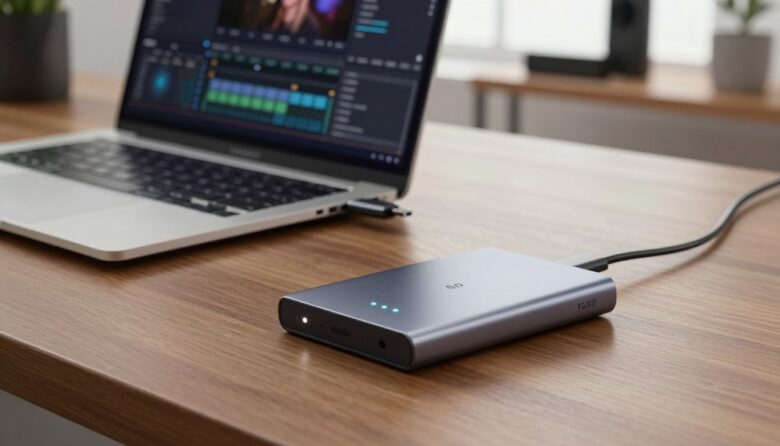
In contrast, external SSDs like the Samsung T7 for camera offer a more affordable and flexible solution. The Samsung T7, for example, provides high-speed data transfer and is compatible with a wide range of devices via USB-C.
The Evolution of USB-C Data Throughput
The USB-C interface has undergone significant improvements in data throughput over the years. Initially, USB-C was capable of speeds up to 5 Gbps with USB 3.2 Gen 1. However, with the advent of USB 3.2 Gen 2 and Thunderbolt 3, speeds have increased to up to 20 Gbps and even 40 Gbps, respectively.
This increase in data transfer speed makes USB-C an ideal interface for budget pro video storage solutions. External SSDs can now keep up with the high data rates required for professional video recording, such as 4K and 8K resolutions.
By adopting external SSD recording, videographers can enjoy greater flexibility, reduced costs, and improved workflow efficiency. As USB-C technology continues to evolve, we can expect even faster data transfer rates, further solidifying the role of external SSDs in professional video production.
Understanding the Cost Benefits of External SSDs
As the demand for high-quality video content grows, the cost benefits of using external SSDs for recording are becoming more apparent. Professionals in the video production industry are continually seeking ways to optimize their workflows without incurring excessive costs. One of the most significant advantages of external SSDs is their potential to offer substantial savings, particularly for those engaged in high-bitrate recording.
The cost-effectiveness of external SSDs can be attributed to their price per gigabyte, which has been decreasing over time. When compared to traditional memory cards, external SSDs often provide a more economical solution for large storage needs.
Price Per Gigabyte Comparison
To understand the cost benefits, it’s essential to compare the price per gigabyte of external SSDs with that of traditional memory cards. External SSDs, such as those using USB-C for connectivity like in Blackmagic USB-C recording setups, offer a competitive price per gigabyte. This comparison is crucial for professionals who require large storage capacities for their high-resolution video files.
For instance, a 1TB external SSD might cost around $150, while a 1TB memory card could be significantly more expensive. This price difference becomes even more pronounced when considering the storage needs of high-bitrate shooters.
Long-Term Savings for High-Bitrate Shooters
For videographers shooting in high-bitrate formats, the long-term savings of using external SSDs can be substantial. High-bitrate recording generates large files, and the storage needs can quickly add up. By opting for external SSDs, professionals can significantly reduce their storage costs over time.
Moreover, external SSDs offer the flexibility to be reused, further enhancing their cost-effectiveness. This reusability, combined with their high performance and compatibility with various devices, makes them an attractive option for budget-conscious professionals seeking budget pro video storage solutions.
In conclusion, the cost benefits of external SSDs, particularly in terms of price per gigabyte and long-term savings for high-bitrate shooters, make them an attractive option for professionals in the video production industry.
Essential Hardware for Your External SSD Recording Guide
When setting up your external SSD for recording, having the right hardware is crucial for ensuring data integrity and convenience. External SSD recording has become a preferred method for many videographers due to its flexibility and cost-effectiveness. However, to fully leverage this technology, it’s essential to understand the critical hardware components involved.
Reliable data transfer is at the heart of successful external SSD recording. This begins with the connection between your camera and the SSD. A high-quality USB-C cable is not just a preference; it’s a necessity for maintaining data integrity during recording.
Selecting the Right USB-C Cable for Data Integrity
Not all USB-C cables are created equal, especially when it comes to data transfer speeds and reliability. For external SSD recording, you need a cable that supports USB 3.2 Gen 2 or higher to ensure that your data transfer rates are sufficient for high-bitrate video recording.
When choosing a USB-C cable, look for cables that are certified by the USB-IF (USB Implementers Forum). This certification ensures that the cable meets the required standards for data transfer and power delivery. Additionally, consider the cable’s construction and length; a shorter, well-shielded cable can reduce the risk of data corruption and interference.
Mounting Solutions for External Drives
Once you have the right cable, the next consideration is how to securely mount your external SSD. A good mounting solution can prevent accidental disconnections and damage to your drive during production. There are various mounting options available, from simple adhesive-backed mounts to more complex rigging systems designed for heavy-duty use.
For a Lumix S5IIX SSD setup, consider a mounting system that allows for easy access and secure fastening to your camera rig or body. This not only protects your SSD but also keeps it within easy reach, making it simpler to manage during long shoots.
By focusing on these essential hardware components, you can ensure a reliable and efficient external SSD recording setup. Whether you’re recording with a Lumix S5IIX or another camera capable of external SSD recording, the right hardware can make all the difference in your production workflow.
Compatibility Check: Cameras That Support USB-C Recording
For professionals and enthusiasts alike, understanding which cameras support USB-C recording is essential for making informed purchasing decisions. As the industry moves towards more versatile and efficient recording solutions, the compatibility of cameras with USB-C technology has become a critical factor.
The first step in determining compatibility is to identify a camera’s USB-C capabilities. Not all USB-C ports are created equal; some support data transfer, while others may only support charging or video output. It’s crucial to check the camera’s specifications to ensure it supports USB-C data transfer, particularly for high-bitrate recording.
Identifying USB-C Power and Data Capabilities
When evaluating a camera’s USB-C port, it’s essential to distinguish between power delivery and data transfer capabilities. Some cameras may use USB-C solely for power, while others can handle both power and data. Consulting the camera’s manual or manufacturer’s website can provide clarity on its USB-C capabilities.
A table summarizing the USB-C capabilities of popular cameras can help streamline the selection process:
| Camera Model | USB-C Data Transfer | USB-C Power Delivery |
|---|---|---|
| Sony A7S III | Yes | Yes |
| Canon EOS R5 | Yes | Yes |
| Nikon Z6II | Yes | No |
Firmware Requirements for External Media
Firmware updates often play a significant role in enabling or enhancing a camera’s USB-C recording capabilities. Manufacturers frequently release updates that improve compatibility with external SSDs, so it’s vital to keep the camera’s firmware up to date.
“Regular firmware updates can significantly enhance the performance and compatibility of your camera with external recording devices.” –
Before investing in external SSDs or other USB-C devices, check the camera manufacturer’s website for the latest firmware version and update instructions.
Setting Up the Samsung T7 for Professional Video Workflows
When it comes to recording high-quality video, the Samsung T7 SSD emerges as a top choice for professionals. Its compact design and high-speed data transfer capabilities make it an ideal solution for videographers looking to record directly to an external SSD.
To get the most out of the Samsung T7 for camera recording, proper setup is crucial. This involves not just connecting the SSD via USB-C but also ensuring that it’s correctly formatted for your camera’s compatibility and that it maintains the necessary write speeds for your video workflow.
Formatting Drives for Camera Compatibility
Formatting the Samsung T7 for use with your camera is a straightforward process, but it requires attention to detail to ensure compatibility. Most professional cameras support exFAT or FAT32 file systems. However, for 4K and high-bitrate recordings, exFAT is generally recommended due to its ability to handle larger file sizes.
To format your Samsung T7, connect it to a computer, and use the disk management utility to select the exFAT file system. This step is crucial for ensuring that your camera can read and write to the SSD without any issues.
Ensuring Sustained Write Speeds
Sustained write speeds are critical for maintaining the integrity of your video recording. The Samsung T7 is capable of high write speeds, but it’s essential to verify this before starting your recording. Using benchmarking tools on your computer can provide insights into the SSD’s performance.
For high-bitrate 4K video, a sustained write speed of at least 500 MB/s is recommended. The Samsung T7, with its USB-C interface, is capable of reaching speeds up to 2,000 MB/s, making it more than adequate for most professional video recording needs.
By following these steps and ensuring your Samsung T7 is properly set up, you can enjoy a seamless and efficient video recording experience, knowing that your external SSD is ready to capture high-quality footage.
Optimizing Blackmagic USB-C Recording Settings
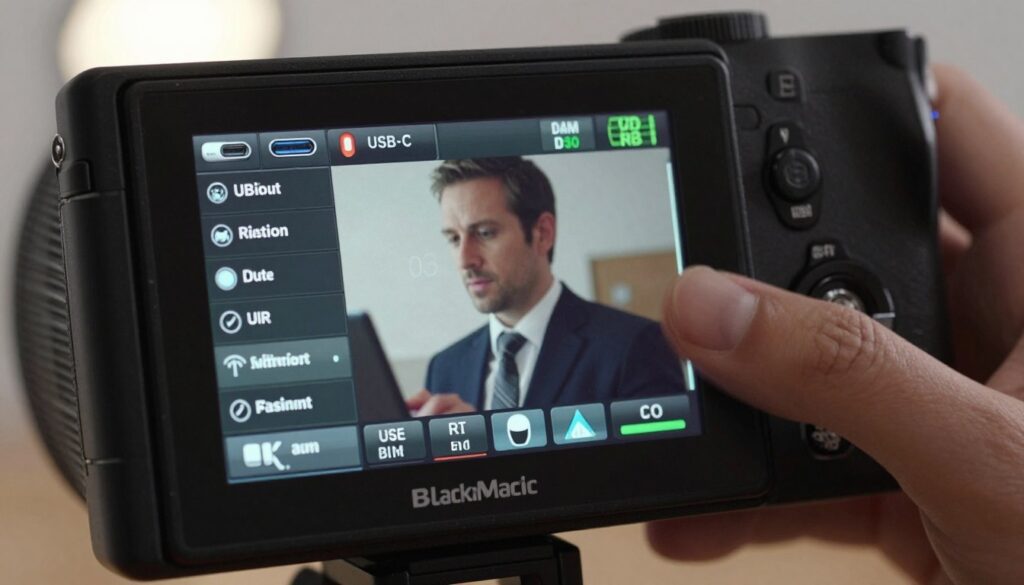
To unlock the full potential of Blackmagic USB-C recording, understanding and adjusting your camera’s settings is essential. This involves making informed decisions about codecs, recording times, and file management to ensure a seamless video production process.
When using Blackmagic cameras with USB-C recording, the first step is to understand the importance of codec selection. The codec you choose directly affects the quality and size of your video files.
Selecting Codecs for External Capture
Choosing the right codec is crucial for balancing video quality and storage requirements. Blackmagic cameras offer various codec options, each with its own advantages.
- ProRes: Ideal for high-quality video with manageable file sizes. It’s a popular choice for post-production workflows.
- Blackmagic RAW: Offers flexibility and high-quality RAW footage, suitable for projects requiring extensive color grading and editing.
- H.264/H.265: These codecs are more compressed and can be suitable for projects where storage space is a concern, though they may not offer the same level of flexibility as ProRes or RAW.
When selecting a codec, consider the specific needs of your project, including the desired video quality, editing requirements, and storage constraints.
Managing Recording Time and File Spanning
Managing recording time and file spanning is critical to maintaining workflow efficiency. Blackmagic cameras allow you to configure how long you can record before the camera automatically starts a new file.
To optimize recording time and file spanning:
- Access your camera’s menu to find the recording settings.
- Adjust the file spanning settings to determine when the camera should start a new file. This is particularly useful for long takes or when working with limited storage capacity.
- Consider the maximum file size allowed by your editing software and storage devices when setting file spanning.
By optimizing these settings, you can ensure a smoother recording process and better manage your storage, making it easier to handle large video files during post-production.
Configuring the Lumix S5IIX for External SSD Capture
To unlock the full potential of the Lumix S5IIX, understanding how to configure it for external SSD capture is essential. This process not only enhances your video production capabilities but also provides the flexibility to work with high-quality, high-bitrate footage.
Enabling External Recording in the Menu System
To start recording to an external SSD, you first need to enable this feature in the Lumix S5IIX’s menu system.
Navigate to the ‘Recording Settings’ menu, where you’ll find the option to select the recording media.
Choose ‘External’ or ‘External SSD’ as your recording device.
This step is crucial as it directs the camera to use the external SSD connected via USB-C for video capture.
Key Steps:
- Access the ‘Recording Settings’ menu.
- Select ‘External’ or ‘External SSD’ as the recording media.
- Ensure your SSD is properly connected via USB-C.
Monitoring SSD Status During Production
Once external recording is enabled, monitoring the SSD status during production is vital to avoid any interruptions.
The Lumix S5IIX provides indicators for the SSD’s remaining capacity and its operational status.
Keep an eye on these indicators to ensure you have enough storage for your shoot and that the SSD is functioning correctly.
Tips for Monitoring:
- Regularly check the SSD’s remaining capacity.
- Monitor the SSD’s operational status for any signs of malfunction.
- Have backup SSDs ready for extended shoots.
By following these steps and tips, you can effectively configure your Lumix S5IIX for external SSD capture and enjoy a seamless video recording experience.
Managing Data Transfer and Post-Production Efficiency
As videographers increasingly adopt external SSD recording, managing data transfer and post-production efficiency becomes vital. This section explores strategies to optimize data handling and enhance the overall efficiency of the post-production process.
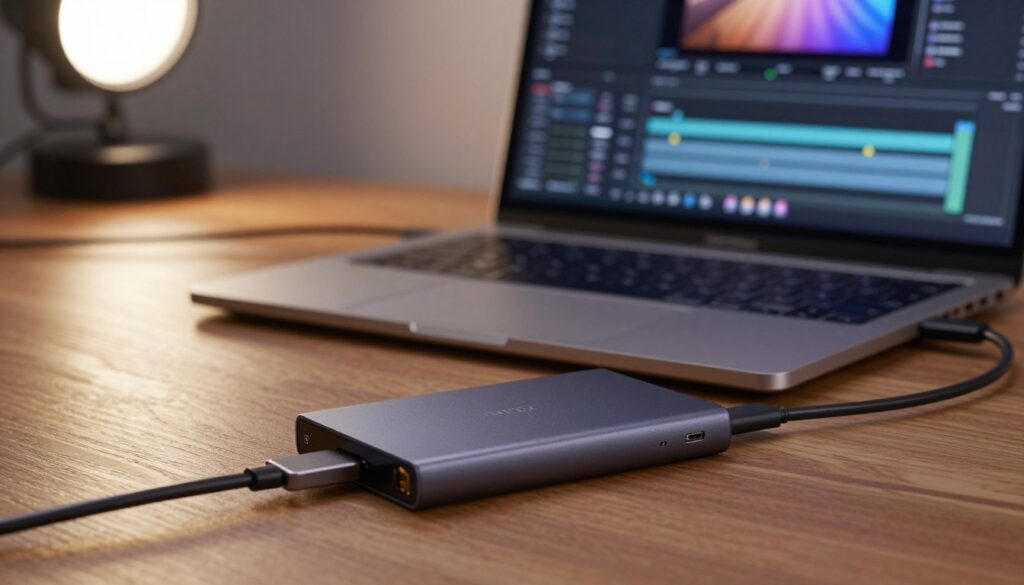
One key aspect is adopting direct-to-edit workflows, which enable seamless integration of external SSD recordings into editing software. This approach eliminates the need for intermediate data transfers, reducing the risk of data corruption and saving time.
Direct-to-Edit Workflows
Direct-to-edit workflows allow videographers to transfer their footage directly to their editing software, streamlining the post-production process. To achieve this, it’s essential to ensure that the external SSD is compatible with the editing software and that the file system is correctly formatted.
For instance, using a Samsung T7 external SSD with Blackmagic Design’s DaVinci Resolve allows for a smooth direct-to-edit workflow. The SSD’s high-speed data transfer capabilities and compatibility with the editing software make it an ideal choice for professionals.
Backup Strategies for External Media
Implementing a robust backup strategy is critical when working with external SSDs. This includes creating multiple copies of the data and storing them in different locations to prevent data loss.
A good practice is to follow the 3-2-1 rule: three copies of the data, on two different types of media, and one copy stored offsite. This ensures that data is safe even in the event of hardware failure or other disasters.
By adopting these strategies, videographers can ensure efficient data management and post-production workflows, making the most of their budget pro video storage solutions.
Potential Pitfalls and How to Avoid Them
When utilizing external SSDs for recording, such as with the Samsung T7 for camera setups, it’s crucial to be aware of potential issues that can impact your workflow. External SSD recording, like with Blackmagic USB-C recording equipment, offers numerous benefits but also presents challenges that need to be managed effectively.
One of the primary concerns is maintaining a stable connection between the camera and the external SSD. Accidental cable disconnection can lead to data loss and disrupt your recording.
Preventing Accidental Cable Disconnection
To minimize the risk of cable disconnection, consider the following strategies:
- Secure the USB-C cable with tape or a cable management system to prevent it from being accidentally pulled out.
- Use a high-quality USB-C cable that is less prone to damage and ensures a stable connection.
- Position the external SSD in a safe location where it won’t be jostled or knocked.
Managing Heat Dissipation During Long Takes
External SSDs can generate heat during prolonged use, potentially leading to throttling or data corruption. To manage this:
| Method | Description | Benefits |
|---|---|---|
| Using an SSD with a heat sink | Some external SSDs come equipped with heat sinks to dissipate heat more efficiently. | Reduces the risk of overheating and throttling. |
| Providing adequate ventilation | Ensure that the SSD is in a well-ventilated area to allow heat to dissipate. | Helps maintain optimal operating temperatures. |
| Monitoring SSD temperature | Some devices and software allow you to monitor the temperature of your SSD. | Enables proactive measures to prevent overheating. |
By being aware of these potential pitfalls and taking steps to mitigate them, you can ensure a smoother and more reliable external SSD recording experience.
Comparing SSD Reliability Against Traditional SD and CFexpress Cards
For professionals using cameras like the Lumix S5IIX, understanding SSD reliability is key when deciding on the best storage solution for their video recording needs.
SSDs, or Solid-State Drives, have gained popularity for their speed and reliability in data storage. When comparing SSDs to traditional SD and CFexpress cards, several factors come into play, including durability, physical protection, and performance in extreme environments.
Durability and Physical Protection
SSDs are generally more durable than traditional memory cards because they are less prone to physical damage. Unlike SD and CFexpress cards, which can be fragile and susceptible to damage from bending or physical shock, SSDs are encased in a more robust housing.
Key durability features of SSDs include:
- Robust casing that protects against physical damage
- Less susceptible to shock and vibration
- Better resistance to environmental factors
In contrast, SD and CFexpress cards, while compact and convenient, can be more vulnerable to damage. However, they are also much smaller and more portable.
Performance Consistency in Extreme Environments
Performance in extreme temperatures is another critical factor. SSDs tend to perform more consistently across a range of temperatures compared to some traditional memory cards.
| Storage Medium | Temperature Range | Performance Consistency |
|---|---|---|
| SSDs | -20°C to 60°C | High |
| SD Cards | -10°C to 40°C | Moderate |
| CFexpress Cards | -10°C to 50°C | High |
As shown in the table, SSDs generally offer a wider operating temperature range and higher performance consistency, making them a reliable choice for recording video in various conditions.
When setting up your Lumix S5IIX for SSD recording, it’s essential to consider these factors to ensure a smooth and reliable video production process.
Conclusion
Using external SSDs for video recording via USB-C offers a cost-effective and efficient solution for professionals. This approach eliminates the need for expensive proprietary cards, providing a budget-friendly alternative for high-quality video storage.
As discussed, cameras like the Lumix S5IIX and Blackmagic cameras support USB-C recording, making it easy to integrate external SSDs into existing workflows. The Samsung T7, with its high-speed data transfer capabilities, is an excellent choice for capturing high-bitrate video.
By adopting an external SSD recording guide, professionals can enjoy long-term savings and improved data management. This method also enhances post-production efficiency, allowing for direct-to-edit workflows and robust backup strategies.
For those looking to optimize their budget pro video storage, external SSD recording via USB-C is a viable solution. It offers durability, performance consistency, and the flexibility to work with various camera systems.
FAQ
Is it actually cheaper to record video to SSD compared to high-end CFexpress or SD cards?
Absolutely. When looking for budget pro video storage, external SSDs offer a significantly lower price-per-gigabyte. While a high-speed 512GB CFexpress Type B card can cost several hundred dollars, a 2TB Samsung T7 Shield often costs much less, providing four times the storage capacity for a fraction of the investment.
Which version of the Samsung T7 for camera use is recommended for professional workflows?
While the standard T7 is fast, the Samsung T7 Shield is the best choice for videographers. It features a ruggedized, water-resistant exterior and, more importantly, improved thermal management. This ensures it can handle the sustained write speeds required for high-bitrate recording without throttling due to heat during long takes.
What is the most important factor in a Lumix S5IIX SSD setup?
Beyond the drive itself, the cable is the most critical link in a Lumix S5IIX SSD setup. You must use a USB-C 3.2 Gen 2 cable capable of at least 10Gbps data transfer. Standard charging cables will not have the bandwidth required to record video to SSD at high resolutions like 5.8K Apple ProRes.
How do I enable Blackmagic USB-C recording on my Pocket Cinema Camera?
For successful Blackmagic USB-C recording, connect your SSD to the USB-C expansion port. Navigate to the “Storage” tab in the menu; if the drive is compatible and formatted correctly (usually exFAT or OS X Extended), it will appear as a recording target. Ensure you select the SSD as the primary drive to bypass the internal CFAST or SD slots.
Will recording to an external SSD drain my camera battery faster?
Yes, using the USB-C port to power and send data to an external drive does increase power consumption. When you record video to SSD, it is a good idea to use a battery grip or an external power solution like a V-Mount battery to ensure your camera doesn’t die in the middle of a critical shot.
How can I prevent the SSD from dangling or disconnecting during a shoot?
To ensure data integrity, use a dedicated SSD mount from brands like SmallRig or Tilta. These clamps attach directly to your camera cage and often include a USB-C cable lock, which prevents the cable from being accidentally yanked out—a mishap that could potentially corrupt your entire video file.
Can I edit my footage directly from the SSD after recording?
One of the biggest perks of this setup is the direct-to-edit workflow. Because drives like the Samsung T7 are so fast, you can plug the drive directly into your MacBook Pro or PC and begin editing in DaVinci Resolve or Adobe Premiere Pro immediately, skipping the time-consuming process of offloading large files.
Does the Lumix S5IIX support All-Intra recording to an SSD?
Yes! The Lumix S5IIX is specifically designed to handle high-bitrate All-Intra and ProRes recording directly to external media. This makes it one of the most versatile tools for filmmakers looking for a high-performance, cost-effective recording solution.

Ryan Whitaker is a technology writer and imaging enthusiast dedicated to camera storage media and data performance. He breaks down complex storage solutions into practical insights for photographers, videographers, and content creators.